

KitOps and Flux
Transforming ML prototypes into production-ready products can get messy. Constantly changing datasets, fiddly model parameters, scattered artifacts, and a growing web of dependencies make it challenging to move these into production with confidence. This challenge has three key components:
- Existing packaging tools weren't designed for the large files and interconnected artifacts required by AI/ML projects.
- Most packages lack tamper-proof guarantees—even without malicious intent, the rapid pace of data science work and AI evolution means unintentional changes can compromise the security and provenance of production-bound models.
- Traditional deployment pipelines weren't built for this complexity, especially when teams are running quickly.
To solve these problems, you need two complementary tools:
- KitOps for packaging and tamper-proof artifacts—this open source project makes it easy to package even complex AI/ML projects into tamper-proof OCI artifacts that are compatible with all existing tools.
- Flux CD for deployment—it brings GitOps principles to the ML world, automating deployments, maintaining synchronization, and providing your team with a clear, versioned view of what's running where.
In this tutorial, you'll learn how to use Flux CD and KitOps together to create a workflow that's repeatable, shareable, and truly scalable—designed specifically for how ML teams work today.
Understanding FluxCD
Flux CD is a declarative GitOps continuous delivery tool for Kubernetes that automatically keeps your cluster synchronized with your Git repositories. Unlike traditional CI/CD tools, Flux follows a "pull" model where the deployment system continuously monitors Git repositories for changes and automatically applies them to your Kubernetes cluster.
While initially more complex to implement, a pull-based CD tool like Flux (which resides inside the Kubernetes cluster and pulls from Git as its source of truth) offers several advantages over the more common push-based deployment model (where an external pipeline pushes changes to various clusters):
- Security: No cluster credentials leave the cluster; no inbound access needed
- Drift Detection: Continuous reconciliation automatically corrects out-of-band changes
- Scalability: Environments self-manage deployments independently
- Environment Control: Easy to scope access and behavior per cluster via Git
Key features of Flux CD include:
- Declarative Configuration: All deployment configurations are stored in Git repositories or OCI registries
- Automated Synchronization: Flux continuously monitors repositories and automatically keeps the cluster in-sync
- Multi-Source Support: Works with Git repositories, Helm repositories, and OCI artifacts
- Security-First Approach: Uses SSH keys or tokens for secure Git access
- Rollback Capabilities: Easy rollback to previous versions through Git history
- Multi-Tenancy Support: Isolate deployments across different teams and environments
FluxCD consists of several controllers:
- Source Controller: Manages Git repositories, Helm repositories, and OCI artifacts
- Kustomize Controller: Applies Kustomize configurations
- Helm Controller: Manages Helm releases
- Notification Controller: Handles alerts and notifications
Prerequisites
Before you install Flux CD, make sure you have the following set up:
- Docker for building and running containers
- A running local Kubernetes cluster (like Minikube or Kind)
- The kubectl CLI to interact with your cluster
- Git CLI installed to interact with that repo (e.g., pushing changes)
Understanding the Architecture: KitOps + Docker + Flux CD
Before diving into this tutorial, it's important to understand the distinct responsibilities of KitOps and Docker, as they solve different aspects of the ML deployment challenge.
-
KitOps handles model packaging. It bundles your trained model, code, datasets, dependencies, and documentation into a versioned, tamper-proof artifact called a ModelKit. Think of it as a specialized archive designed specifically for ML, stored in a container registry like Jozu Hub (which is also available self-hosted or on-premises) or any other OCI-compatible registry.
-
Docker handles model execution. It builds a container image that knows how to serve predictions. During the Docker build process, you use
kit unpackwith filters to extract only what you need from the ModelKit into the runnable container.NOTE: If you prefer to skip manual building and unpacking, Jozu Hub provides a streamlined approach using built-in Docker support. The Hub provides ready-to-run Docker images. For example:
docker run -it --rm jozu.ml/<user>/<model>/basic:<version>This command starts the container immediately.
-
FluxCD orchestrates deployments using a Git repository as the single source of truth. You can store the Kitfile alongside your Kubernetes manifests and Dockerfile in the same repository. While the actual model artifacts reside in the container registry, Flux coordinates deployments entirely from Git, ensuring a consistent, auditable deployment history.
This separation of concerns provides several benefits:
- Data scientists can update models without modifying container builds
- AI/ML teams can manage ML assets independently from deployment logic
- Organizations gain better version control, traceability, and repeatability in production
Below is an architecture overview:
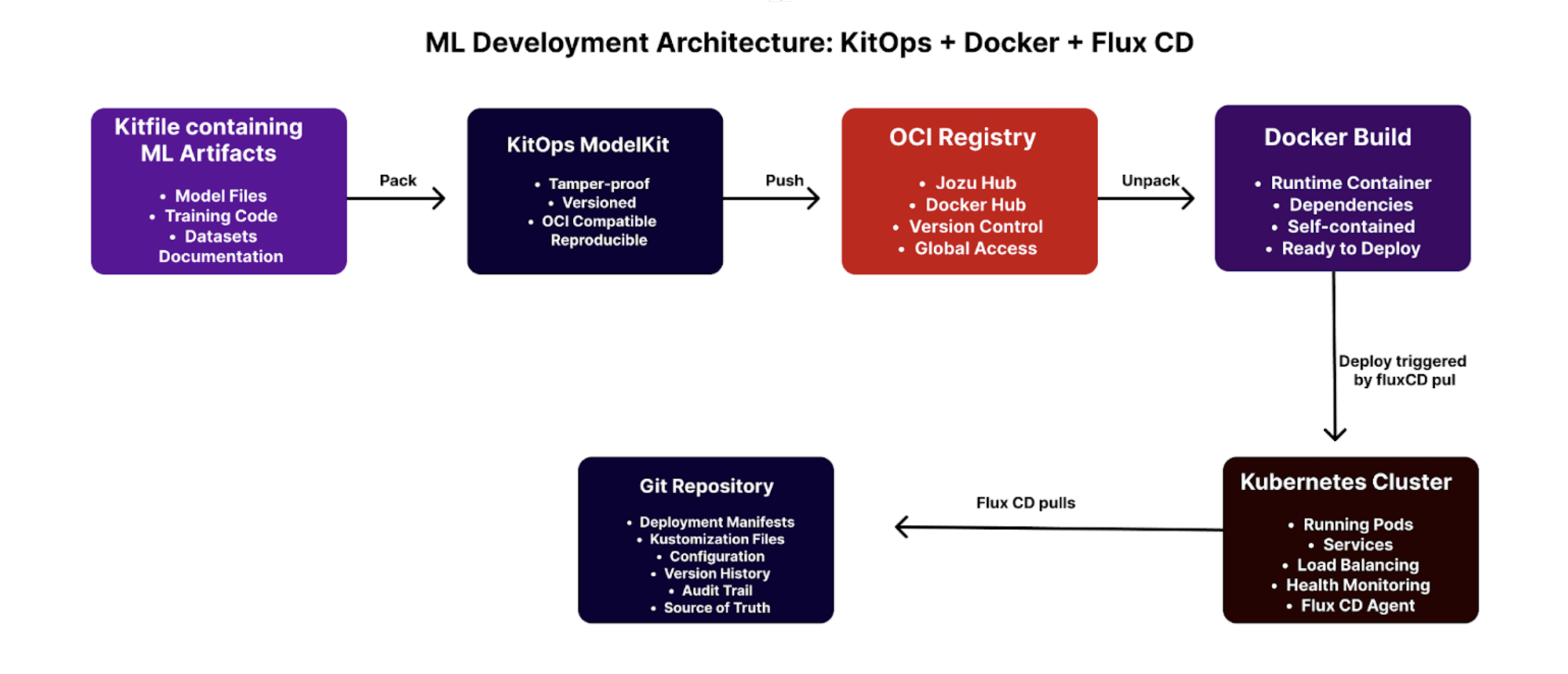
In more advanced setups, you can avoid rebuilding containers when models change. Containers can dynamically fetch the latest ModelKit at runtime, or your CI/CD pipeline can trigger updates based on new artifact versions. This decoupling is a key advantage of adopting artifact registries in ML pipelines.
Download the Model
For this tutorial, we'll download distilbert-base-uncased from Hugging Face using the kit import command:
kit import https://huggingface.co/distilbert/distilbert-base-uncased
Once downloaded, unpack the ModelKit into a folder called my-ml-project:
mkdir \-p my-ml-project && kit unpack distilbert/distilbert-base-uncased:latest \-d ./my-ml-project This command extracts the model into the specified folder.
Now, navigate into the project folder
cd my-ml-project Next, create a requirements.txt file in your project root folder with the following dependencies:
\# requirements.txt

transformers==4.35.2

torch

scikit-learn==1.3.0

numpy==1.24.3

uvicorn

fastapi==0.104.1

pydantic==2.5.0
Optionally, you can create a README.md file at the root folder level with project documentation, or use this Quickstart README from GitHub Gist as a template.
Now, navigate into the project folder and create two directories—code and datasets:
cd my-ml-project

mkdir \-p {code,datasets}
The code folder will contain two files: inference.py for loading the trained model and making predictions, and train.py for training and saving the model.
First, create inference.py inside the code folder:
from fastapi import FastAPI

from pydantic import BaseModel

from transformers import pipeline

app \= FastAPI()

classifier \= pipeline("sentiment-analysis", model="./fine\_tuned\_model")

class Input(BaseModel):

   text: str

@app.get("/")

def health():

   return {"status": "ok"}

@app.post("/predict")

def predict(input: Input):

   return classifier(input.text)

if \_\_name\_\_ \== "\_\_main\_\_":

   import uvicorn

   uvicorn.run(app, host="0.0.0.0", port=8000)
This FastAPI application serves the model using the transformers library. It loads a fine-tuned model from ./fine_tuned_model and exposes two endpoints: a health check at / and a /predict endpoint that accepts text input and returns sentiment predictions. Input validation is handled by Pydantic, and the application runs on port 8000.
Next, create train.py in the code directory:
from transformers import DistilBertTokenizer, DistilBertForSequenceClassification, Trainer, TrainingArguments

from sklearn.model\_selection import train\_test\_split

import torch, json

class Dataset(torch.utils.data.Dataset):

   def \_\_init\_\_(self, texts, labels, tokenizer):

       self.texts \= texts

       self.labels \= labels

       self.tokenizer \= tokenizer

   def \_\_len\_\_(self): return len(self.texts)

   def \_\_getitem\_\_(self, idx):

       enc \= self.tokenizer(self.texts\[idx\], padding="max\_length", truncation=True, max\_length=128, return\_tensors="pt")

       return {

           'input\_ids': enc\['input\_ids'\].squeeze(0),

           'attention\_mask': enc\['attention\_mask'\].squeeze(0),

           'labels': torch.tensor(self.labels\[idx\])

       }

def load\_data():

   with open("datasets/sample\_data.json") as f:

       data \= json.load(f)\['samples'\]

   texts \= \[d\['text'\] for d in data\]

   labels \= \[d\['label'\] for d in data\]

   return texts, labels

def train():

   texts, labels \= load\_data()

   tokenizer \= DistilBertTokenizer.from\_pretrained("./")

   model \= DistilBertForSequenceClassification.from\_pretrained("./", num\_labels=2)

   X\_train, X\_val, y\_train, y\_val \= train\_test\_split(texts, labels, test\_size=0.2)

   train\_dataset \= Dataset(X\_train, y\_train, tokenizer)

   val\_dataset \= Dataset(X\_val, y\_val, tokenizer)

   args \= TrainingArguments(

       output\_dir="./results",

       evaluation\_strategy="epoch",

       save\_strategy="epoch",

       save\_total\_limit=1,

       per\_device\_train\_batch\_size=4,

       num\_train\_epochs=3,

       logging\_dir="./logs",

       logging\_steps=10,

       load\_best\_model\_at\_end=True,

       no\_cuda=True,

       report\_to="none",

       seed=42

   )

   trainer \= Trainer(model=model, args=args, train\_dataset=train\_dataset, eval\_dataset=val\_dataset)

   trainer.train()

   model.save\_pretrained("./fine\_tuned\_model")

   tokenizer.save\_pretrained("./fine\_tuned\_model")

if \_\_name\_\_ \== "\_\_main\_\_":

   train()
This code sets up a training pipeline for fine-tuning a DistilBERT model for binary text classification using PyTorch and Hugging Face Transformers. After training completes, the model is saved locally to a directory named fine_tuned_model.
Finally, create sample_data.json in the datasets folder:
{

 "samples": \[

   { "text": "I love this product, it's amazing\!", "label": 1 },

   { "text": "This is terrible, I hate it.", "label": 0 },

   { "text": "The weather is nice today.", "label": 1 },

   { "text": "Poor quality, very disappointed.", "label": 0 }

 \]

}
This file contains sample datasets for training the model.
Train the Model
To train your model, first create a virtual environment.
Navigate to the root of your project.
For Windows users:
# Create the virtual environment
python -m venv venv
# Activate it (Command Prompt)
venv\Scripts\activate
# Or for PowerShell:
venv\Scripts\Activate.ps1
For Mac and Linux users:
# Create the virtual environment
python3 -m venv venv
# Activate it
source venv/bin/activate
After activating the virtual environment, install the dependencies and run the training script:
pip install -r requirements.txt
python train.py
After training completes, you should see the saved model in the fine_tuned_model directory.
Edit the Kitfile
Open the Kitfile and define all the files needed for the project. This tells KitOps what to track when packaging your ModelKit, preserving the structure and workflows of your local development environment.
For this tutorial, configure the Kitfile as follows (replace \<> with your name below):
manifestVersion: v1.0.0

package:

 name: distilbert-sentiment

 version: 1.0.6

 description: DistilBERT model for binary sentiment classification

 authors: \<\<Author Name\>\>

model:

 name: distilbert-base-uncased

 framework: transformers

 version: 1.0.6

 path: ./fine\_tuned\_model

 description: Fine-tuned DistilBERT model

code:

 \- path: ./code

   description: Inference and training scripts

 \- path: ./requirements.txt

   description: Python dependencies

datasets:

 \- path: ./datasets/sample\_data.json

   description: Sample sentiment dataset

docs:

 \- path: ./README.md

   description: Project documentation
Package the Model with KitOps
Use the kit pack command to create the ModelKit. Ensure that the ModelKit in your local registry matches the naming structure of your remote registry:
kit pack . -t jozu.ml/your-user/distilbert-sentiment:1.0.0
Replace your-user with your Jozu Hub username.
This command scans your project folder using the Kitfile as a manifest and collects:
- The trained model from
./fine_tuned_model - The code in
./code - Your
requirements.txt - Any datasets or documentation files listed
It then packages everything into a versioned, tamper-proof ModelKit and tags it with the specified URI. This artifact gets stored in your OCI registry and will later be pulled into your Docker build.
After running this command, you should see a confirmation message:

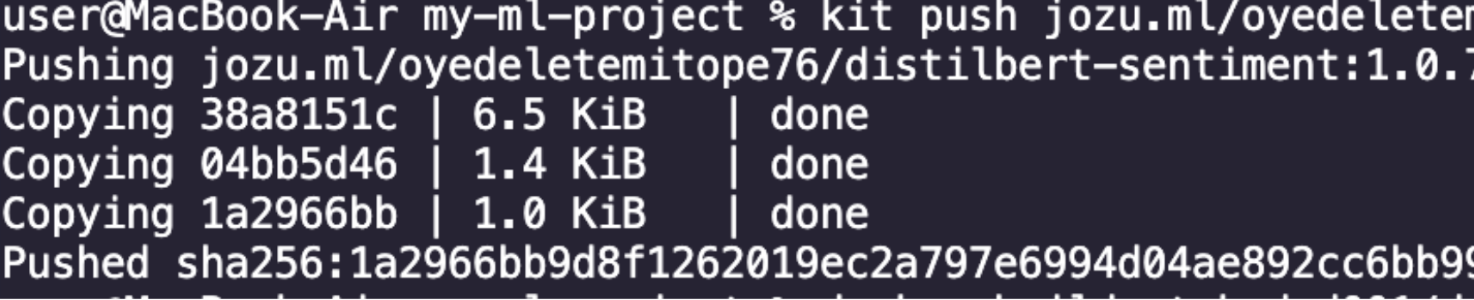
Next, use the kit push command to upload the newly built ModelKit from your local repository to the Jozu Hub remote repository:
kit push jozu.ml/your-user/distilbert-sentiment:1.0.0
Once the command completes, you'll see a message displaying "[INFO] pushed" along with the newly built ModelKit digest, confirming successful upload.
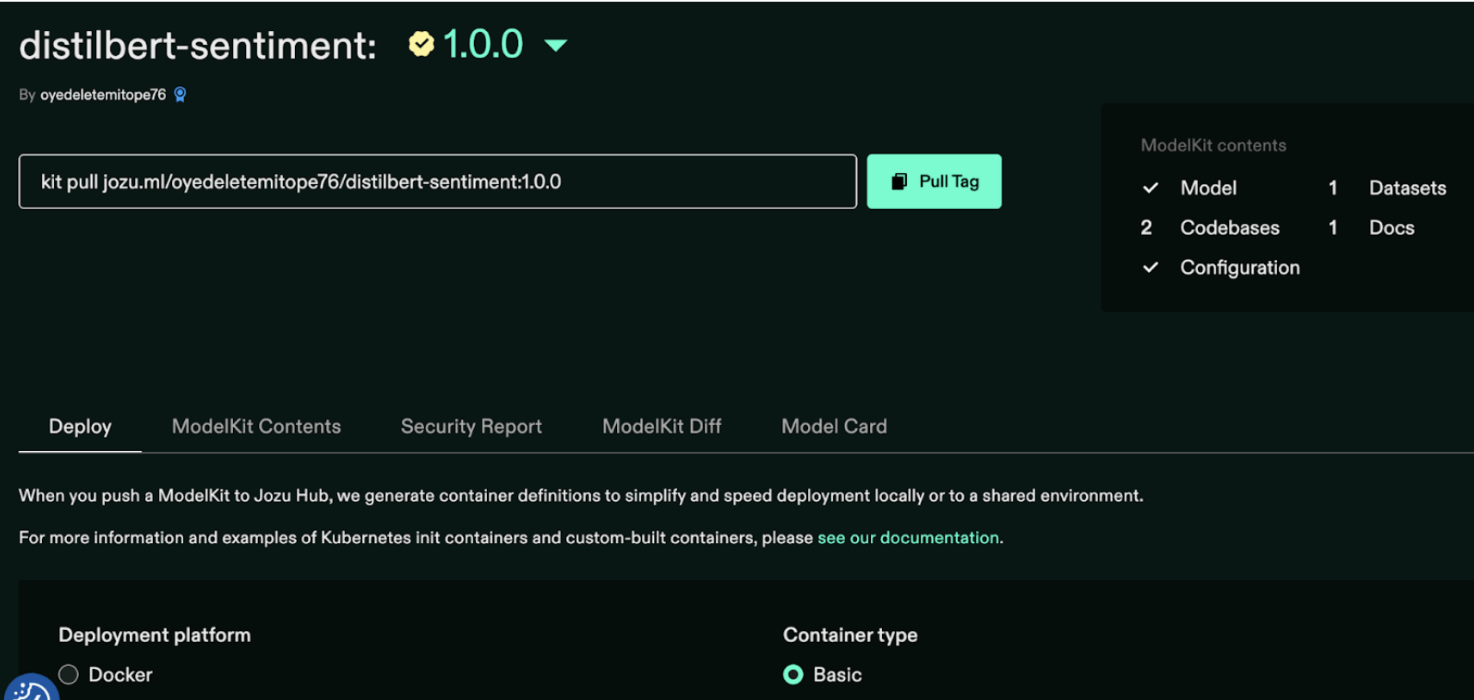
After the push completes, log into Jozu Hub at jozu.ml and click "My Repositories" on the menu bar. You should see your new repository.
Create a Docker Image and Startup Script
The Dockerfile handles the runtime environment inside the container, ensuring everything is properly configured when the container is deployed, eliminating the need for manual setup.
Create a Dockerfile with the following content:
FROM python:3.10-slim

WORKDIR /app

\# Install system dependencies

RUN apt update && apt install \-y curl && rm \-rf /var/lib/apt/lists/\*

\# Install kitops

RUN curl \-sSL https://github.com/kitops-ml/kitops/releases/latest/download/kitops-linux-x86\_64.tar.gz \\

   | tar \-xvz \--directory /usr/local/bin

\# Pull ModelKit at build time and extract everything

RUN kit unpack jozu.ml/oyedeletemitope76/distilbert-sentiment:1.0.0 \-d /app

\# Install Python dependencies at build time

RUN pip install \-r requirements.txt

\# Copy and prepare the startup script

COPY run\_model.sh .

RUN chmod \+x run\_model.sh

EXPOSE 8000

\# Set Python path

ENV PYTHONPATH=/app

ENTRYPOINT \["/app/run\_model.sh"\]
Here's what each section of the Dockerfile does:
-
Base image: Starts from
python:3.10-slim, a minimal Python 3.10 image to keep the container size small -
WORKDIR: Sets the working directory inside the container to
/app -
System dependencies: Updates apt and installs
curl, then cleans up the cache to reduce image size -
KitOps installation: Downloads and extracts the KitOps CLI tool from GitHub into
/usr/local/bin, making it globally accessible -
Model unpacking: Uses KitOps to pull the prepackaged model (distilbert-sentiment:1.0.0) from jozu.ml and extracts it to
/app -
Python dependencies: Installs all packages listed in the model's
requirements.txt -
Startup script: Copies and makes executable the
run_model.shscript -
Port exposure: Exposes port 8000 for the FastAPI application
-
Python path: Sets
PYTHONPATHto/appso imports work correctly -
Entrypoint: Specifies that the container should run
run_model.shwhen it starts
Next, create the startup script run_model.sh:
\#\!/bin/bash

set \-e

echo "\[+\] ModelKit already unpacked during build"

echo "\[+\] Dependencies already installed during build"

echo "\[+\] Starting inference server..."

\# Start the FastAPI server with uvicorn

python code/inference.py
Build and Push the Image
To create the Docker image with your model and application fully integrated, run:
docker build -t your-username/distilbert-runtime:1.0.0 .
Then push the image to Docker Hub:
docker push your-username/distilbert-runtime:1.0.0
Replace your-username with your DockerHub username.
Install Flux CD
For macOS and Linux users, install Flux by running:
curl -s https://fluxcd.io/install.sh | sudo bash
You can also install using Homebrew:
brew install fluxcd/tap/flux
For Windows, Open PowerShell as Administrator, then run:
iwr -useb https://fluxcd.io/install.ps1 | iex
For a complete list of options and detailed instructions, refer to the official guide here
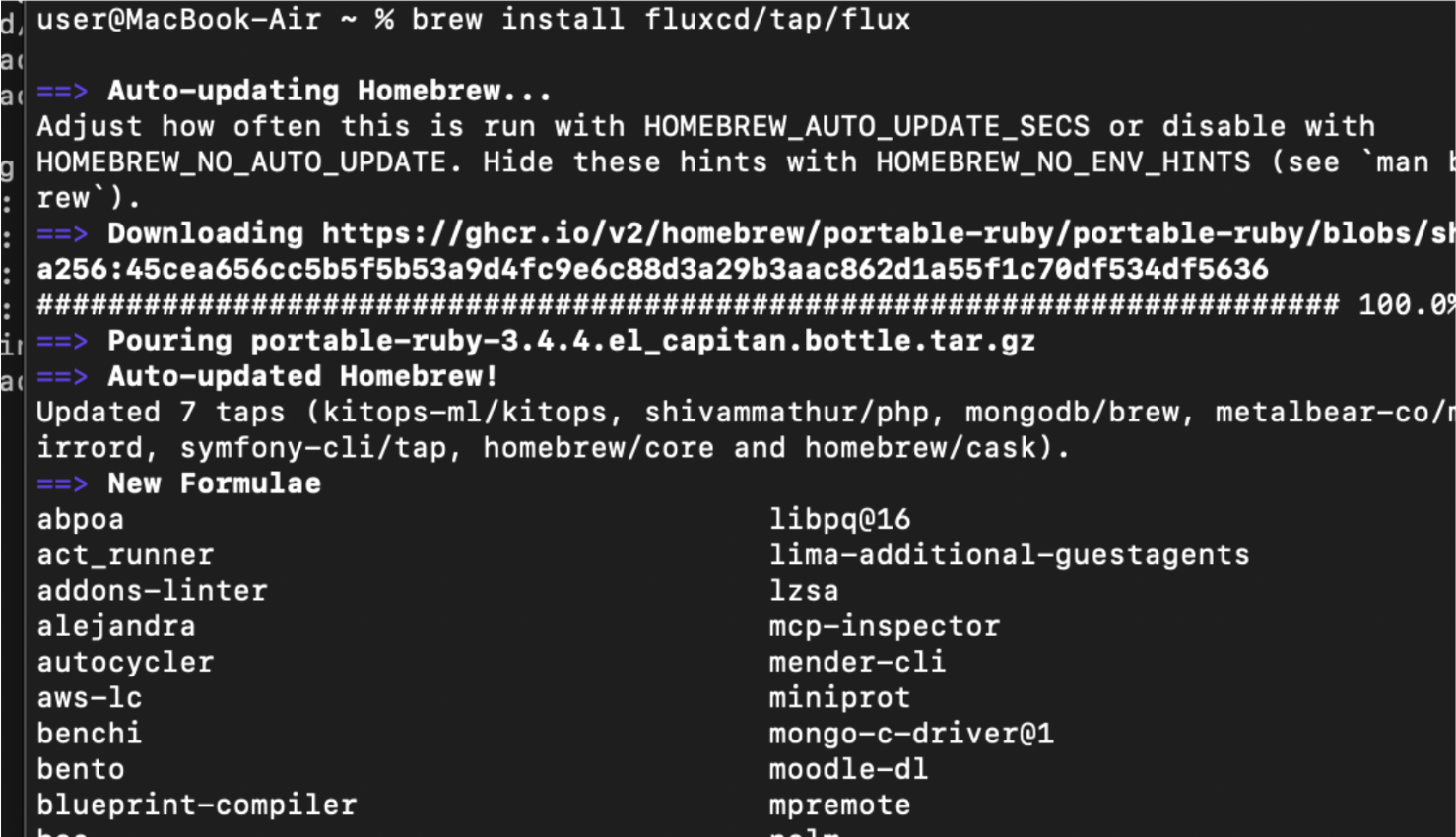
Before proceeding, ensure that Flux is correctly installed and that your Kubernetes cluster meets all requirements by running the following command:
flux check \--pre You should see output indicating that all prerequisites have passed, for example:
► checking prerequisites
✔ Kubernetes 1.33.0 \>=1.31.0-0
✔ prerequisites checks passed
This confirms that Flux is ready to operate on your cluster.
Bootstrap Flux in Your GitHub Repository
For this tutorial, you'll need a GitHub repository to store your Kubernetes manifests. Log into GitHub and create a new repository called ml-infra.
You'll also need to create a classic personal access token (PAT) from your GitHub account. This is required because the flux bootstrap github command interacts with the GitHub API in ways that fine-grained tokens don't yet fully support.
Make sure that your GitHub Personal Access Token (PAT) has the necessary permissions to create repositories, as Flux will automatically create a repository during the bootstrap process.
Next, run this command to bootstrap Flux:
flux bootstrap github \\

  \--token=$GITHUB\_TOKEN \\

  \--owner=\<your-github-username\> \\

  \--repository=ml-infra \\

  \--branch=master \\

  \--path=clusters/dev
Replace the placeholders with your information:
--token: Your classic personal access token--owner: Your GitHub username or organization--repository: The repository name where your Kubernetes configs will reside--branch: The branch Flux should monitor (usually main or master)--path: The folder in the repository where Flux will write cluster configurations
This command performs several actions:
- Installs core Flux components in your Kubernetes cluster
- Creates a deploy key in your GitHub repository for secure access
- Sets up the required directory structure
- Commits initial Flux configuration files to your repository
It effectively bootstraps a complete GitOps workflow in a single step.
Once complete, clone the repository:
git clone https://github.com/<your-username>/ml-infra.git
cd ml-infra
Next, create the following directory structure:
- Create an
appsfolder - Inside
apps, create adistilbertsubfolder - This folder will contain two manifest files:
deployment.yamlandkustomization.yaml
Deploying with Flux CD
Create deployment.yaml inside the distilbert folder:
apiVersion: apps/v1

kind: Deployment

metadata:

 name: distilbert-sentiment-classifier

 namespace: default

 labels:

   app: distilbert-sentiment-classifier

spec:

 replicas: 1

 selector:

   matchLabels:

     app: distilbert-sentiment-classifier

 template:

   metadata:

     labels:

       app: distilbert-sentiment-classifier

   spec:

     containers:

       \- name: model-runtime

         image: koded001/distilbert-runtime:1.0.0

         ports:

           \- containerPort: 8000

         env:

           \- name: MODEL\_VERSION

             value: "1.0.2"

           \- name: JOZU\_REGISTRY

             value: "jozu.ml/oyedeletemitope76"

         readinessProbe:

           httpGet:

             path: /

             port: 8000

           initialDelaySeconds: 10

           periodSeconds: 5

         livenessProbe:

           httpGet:

             path: /

             port: 8000

           initialDelaySeconds: 30

           periodSeconds: 10

         resources:

           requests:

             cpu: "250m"

             memory: "512Mi"

           limits:

             cpu: "500m"

             memory: "1Gi"  ‘
This deployment manifest:
- Runs the model as a container using the
koded001/distilbert-runtime:1.0.0image - Configures environment variables
- Exposes port 8000
- Includes readiness and liveness probes to ensure reliable operation
- Defines CPU and memory resource limits
Next, create kustomization.yaml:
apiVersion: kustomize.config.k8s.io/v1beta1

kind: Kustomization

resources:

 \- deployment.yaml
This tells Kubernetes to apply the resources defined in deployment.yaml. Kustomize helps you manage and customize Kubernetes configurations cleanly, especially across different environments.
Now, tell Flux to apply your application configuration. In the clusters/dev folder, create distilbert-app.yaml:
apiVersion: kustomize.toolkit.fluxcd.io/v1

kind: Kustomization

metadata:

 name: distilbert-app

 namespace: flux-system

spec:

 interval: 5m

 path: "./flux-config/apps/distilbert"

 prune: true

 sourceRef:

   kind: GitRepository

   name: flux-system
This configuration tells Flux to automatically deploy and synchronize everything under ./apps/distilbert from your Git repository every 5 minutes.
Commit and push your changes:
git add .

git commit \-m "Add distilbert deployment"

git push origin master
Flux will automatically detect these changes and deploy the API within a minute.
To monitor Flux synchronization:
flux get kustomizations -A

Verify that your pods are running in Kubernetes:
kubectl get pods

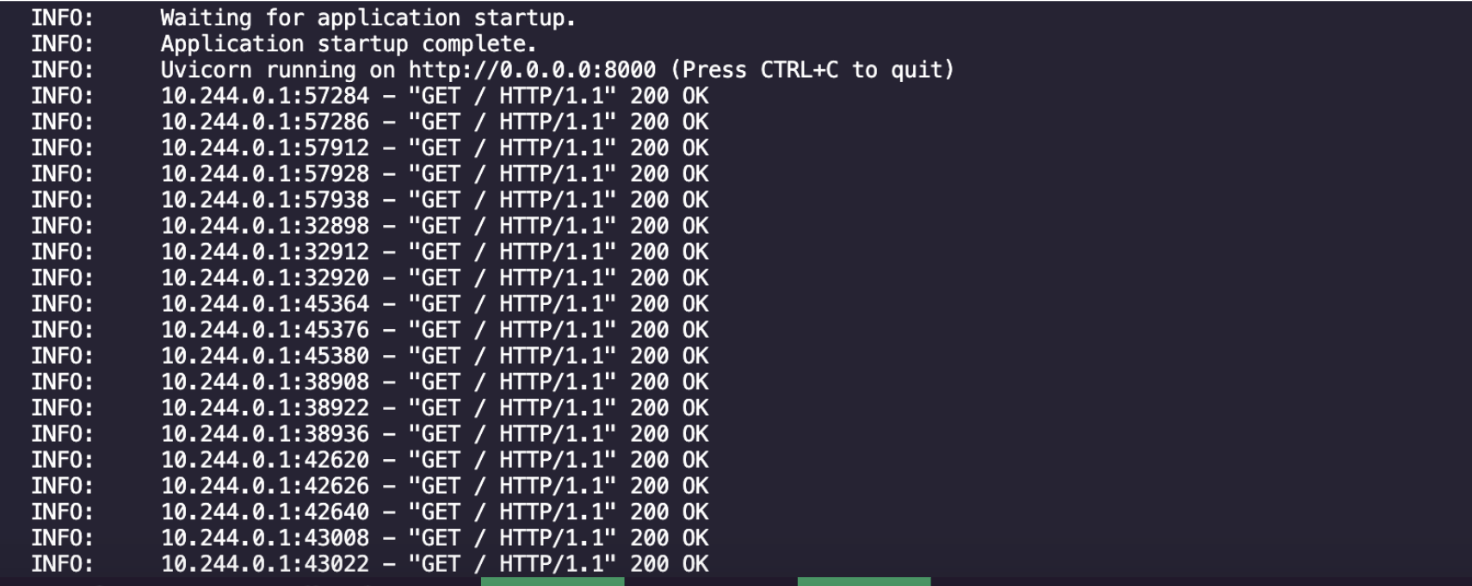
To test your sentiment analysis API locally, forward the port:
kubectl port-forward <pod-name> 8000:8000
Replace <pod-name> with your actual pod name from the previous command.
Updating Your Model Workflow with Flux CD
When you update your model (for example, retraining for better accuracy), Flux CD automatically detects and deploys the changes—no manual kubectl apply commands needed.
Step 1: Update the Container Image
After training and packaging the new model, rebuild the Docker image and update the image version in your deployment.yaml file:
containers:

  \- name: model-runtime

    image: koded001/distilbert-runtime:1.0.9  \# previously 1.0.0
Step 2: Commit and Push the Change
Use Git to commit and push your updated deployment file:
git add apps/distilbert/deployment.yaml

git commit \-m "Update model runtime to v1.0.9"

git push origin master
Step 3: Let Flux Handle the Deployment
Flux CD automatically detects the change, fetches the latest state from your Git repository, and applies the updated configuration to your Kubernetes cluster.
To watch Flux in action:
flux get kustomizations -A -w
To observe the pod rollout in real-time:
kubectl get pods -w
You'll see output similar to the following, showing the old pod terminating while a new one is created:
| NAME | READY | STATUS | RESTARTS | AGE |
|---|---|---|---|---|
| distilbert-sentiment-classifier-5fc9997478 | 1/1 | Terminating | 0 | 30m |
| distilbert-sentiment-classifier-7d8b9c4a12 | 0/1 | ContainerCreating | 0 | 5s |
| distilbert-sentiment-classifier-7d8b9c4a12 | 1/1 | Running | 0 | 45s |
Step 4: Verify the Deployment
Confirm that the new container is running:
kubectl get pods
This demonstrates the power of GitOps: once you commit changes, Flux automatically applies them to your cluster in a controlled and auditable manner—no manual commands or direct cluster interaction required.
Conclusion
The GitOps approach with Flux CD provides a robust foundation for ML operations, ensuring that your models are deployed consistently, securely, and with full traceability. When combined with KitOps for artifact management, you have a complete solution for modern ML deployment workflows.
This tutorial has shown you how to:
- Package ML models into tamper-proof artifacts with KitOps
- Build containerized model servers with Docker
- Implement GitOps-based deployments with Flux CD
- Create automated, auditable deployment pipelines for ML models
If you're interested in learning more about KitOps or connecting with our team, please join our community Discord channel.