


Running a Local Coding Agent with OpenCode and Jozu Rapid Inference Container (RICs)
Introduction
"Software 3.0" was coined by Andrej Karpathy to describe this next evolution of software development. Before this, we had Software 1.0, where developers wrote code instructions for the computer, and Software 2.0, where neural networks learn patterns from data to make decisions. In Software 3.0, natural language becomes the programming language, and LLMs become a kind of computer turning our intents into executable behaviour. An example of this is AI coding agents like OpenCode, which can autonomously read and write files, execute commands, and complete complex coding tasks. Another beauty of OpenCode is that it's LLM-provider agnostic, so you can connect it to a local LLM instead of sending sensitive or proprietary code to third-party APIs.
But running LLMs locally entails exposing a model through an OpenAI-compatible API endpoint, handling request scaling, ensuring reproducible deployments etc, which are hard engineering problems. So in this tutorial, we'll see how Jozu simplifies this process by packaging and versioning LLMs into OCI-compliant artifacts called ModelKits, and automatically generates Rapid Inference Containers (RICs) that can be served locally.
AI Coding Agents with OpenCode
Overview of AI Coding Agents
The idea of a coding assistant is not new. We've had autocomplete, linters, and code suggestions for years, but AI coding agents are a different class of tool. They are more akin to having a junior developer sitting in your terminal, capable of reading and understanding your entire codebase, interacting with the file system, shell terminal, browser, etc, to achieve a given task. These agents are used to boost developer productivity, automate repetitive engineering tasks, perform code reviews, and even build applications completely with minimal human intervention.
What is OpenCode and its capabilities?
OpenCode is an open-source AI coding agent that runs in your terminal, desktop app, or IDE, and supports 75+ LLM providers, including local models. It is capable of planning complex tasks, spinning up and orchestrating multiple agents for long-horizon workflows, debugging and iterating until completion, and integrating language servers to give the LLM a deeper understanding of your code.
What is Jozu Hub and Why Use It?
A model registry and deployment platform designed for AI/ML projects
AI/ML projects are made up of many interdependent assets: model weights, custom or company datasets, configuration files, licenses, documentation, prompts, skills and more. All of these evolve independently across experiments and fine-tuning runs, and teams need a way to keep track of their versions, while ensuring the quality of each asset through the software development supply chain.
Jozu Hub helps teams securely manage, govern, and deploy these assets. At its heart is the ModelKit, a packaging format bundling all the artifacts of your AI/ML project (datasets, code, configs, documentation, model weights, etc.) into a single OCI-compliant artifact. Think of it like a git repository that tracks and versions your ML project, but packaged in a way that container registries already understand.
Jozu's governance & security audit
For enterprises, security and compliance are non-negotiable. Jozu Hub is designed for this from the ground up:
-
End-to-End Provenance: Jozu Hub maintains a full audit trail for every ModelKit, providing a complete chain of custody from creation to production deployment. You can see exactly which model is running in production and trace it back to the precise code, data, configurations, and artifacts that were packaged and shipped with it. This is essential for debugging, incident response, and compliance with regulations like the EU AI Act, GDPR, and SOC 2.
-
Security Scanning & Policy Gates: Before a model can be deployed, Jozu Hub automatically scans it for vulnerabilities, license compliance issues, and policy violations. You can set rules to block deployments if scans fail, require manual approval, or enforce specific security rules.
-
Tamper-Proof Packaging: ModelKits can be cryptographically signed using industry-standard tools like Cosign. Any unauthorized change to the contents, whether to model weights, datasets, or any other artifact, will be immediately detected through signature verification, preventing compromised artifacts from entering production.
Key benefits of using ModelKits
-
Selective unpacking: Unpack only what you need (e.g just the model weights, just the dataset, just the prompt, or just the configs). This speeds up pipelines, reduces your compute overhead, and avoids unnecessary data movement.
-
No duplication for shared assets: Common assets like datasets or configuration files can be reused across multiple ModelKits without bloating storage.
-
Proper version control: With ModelKit, all project artifacts are versioned and bundled together, enabling full reproducibility and traceability. You can also use familiar, registry-native tags (for example,
:latest,:staging,:prod). -
Standard-based and portable: Because ModelKits are OCI-compliant, they work with any container registry and can be managed just like any container image. There's no vendor lock-in. You can store them alongside your regular container images and manage them using the same authentication, RBAC, and access controls you already have in place.
Jozu Rapid Inference Containers (RICs)
Once you have the LLM ModelKit in Jozu Hub, you don't need to write custom inference API code just to serve the model. Jozu can automatically generate Rapid Inference Containers (RICs) for you. These are pre-configured, optimized inference containers built directly for your project that are ready to serve your model in production.
Why this matters:
-
Zero configuration: You don't write Dockerfiles, configure servers, or set up inference APIs. Jozu does it automatically based on your model format and metadata. You can get a llama.cpp RIC for your GGUF model, or a vLLM RIC for your Safetensors model.
-
Optimized for performance: RICs are tuned for inference workloads, not bloated with unnecessary dependencies.
-
Kubernetes-ready: Jozu provides a ready-to-use Kubernetes deployment YAML, making it straightforward to deploy RICs into existing clusters.
-
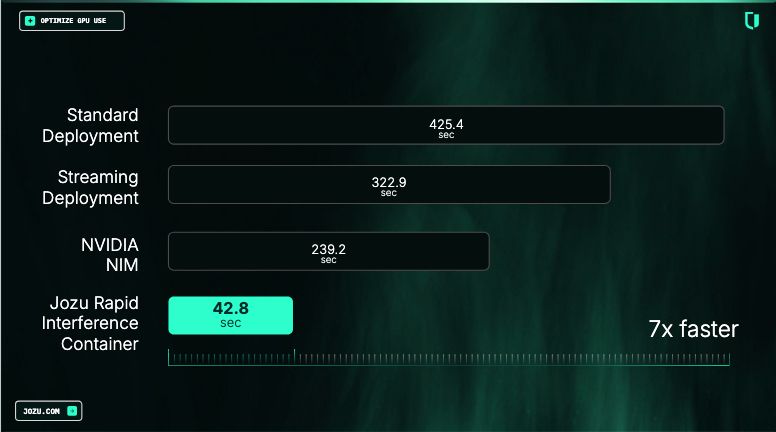
7x faster deployment (based on Jozu benchmarks): Because RICs are pre-built and cached, spinning up a new model server is significantly faster than traditional container deployments. The image below shows an internal benchmark comparison with other solutions.
-
Limited container bloat: Because RICs are added to the ModelKit at the point of deployment, it limits the number of containers that your organization needs to manage and maintain.
Prerequisites and System Requirements
This section outlines the hardware requirements, software, and tooling needed to package and version the model with KitOps and run it locally with Docker, which Jozu RICs leverages to bring the simplicity of containers to running models.
Hardware Requirements for LLM Inference
AI/ML inference can be compute & resource-intensive, but your exact needs depend on the model size and quantization level you choose.
GPU vs CPU: Understanding the Performance Gap
GPUs (Graphics Processing Units) are fundamentally better for LLM inference because they're built with thousands of cores designed for parallel computation, making them exponentially faster at the matrix multiplications that neural networks perform during inference. For a real-world comparison: a mid-range GPU like the RTX 4070 Ti can generate 30-50 tokens per second on a 7B model, while a modern CPU with 8+ cores and high clock speed will inference the same model at around 5-10 tokens per second.
That said, CPUs (Central Processing Units) are still a viable option, especially if you don't have access to a powerful GPU. While much slower, modern CPUs with higher core counts and advanced instruction sets (such as AVX-512) can deliver usable inference speeds for smaller or quantized models. This makes CPU inference a cost-effective choice for experimentation, development, or deployments where latency is less critical.
Calculating Your Needs: Model Size, Quantization, and Memory
Another major constraint is memory (including disk space, GPU VRAM, and system RAM). Memory requirements are primarily determined by the model's parameter count (eg, 7B, 13B, 70B) and the quantization used.
-
Quantization is a compression technique that reduces the numerical precision of model weights, dramatically lowering memory usage at a relatively small cost to accuracy. This is what makes running large models on consumer-grade hardware possible.
-
A Simple Formula: A good rule of thumb for estimating memory needs is:
- Full Precision (e.g., FP16, BF16): \~2 GB per 1B parameters.
- 8-bit Quantization (e.g., INT8, Q8_K_M, Q8_0): \~1 GB per 1B parameters.
- 4-bit Quantization (e.g., Q4_K_M, Q4_0): \~0.5 GB per 1B parameters.
- 2-bit Quantization (e.g., Q2_K_XL, Q2_XXS): \~0.25 GB per 1B parameters.
Note: There are other bit quantizations (1-bit, 6-bit, etc.), you can still extrapolate the memory needed from the above rule of thumb.
For example, a 7B model requires roughly 14 GB at full precision. An 8-bit quantized version cuts this to about 7 GB, while a 4-bit quantized version brings it down further to roughly 3.5 GB with acceptable quality degradation that's still fine for the majority of use cases.
-
Storage Considerations: For disk storage, an NVMe SSD is strongly recommended for fast model loading times and reduced I/O bottlenecks. Loading a 70B model from NVMe takes about 30 seconds versus 3-5 minutes from a traditional hard drive.
For even more detailed hardware guidance, check out: LLM Hardware Requirements & Setup for Local Environment - ML Journey.
I'll be using an NVIDIA L40S (48GB). The model we'll run locally is the 4-bit quantized GGUF version of Qwen3.5-9B, which requires 5.5GB of VRAM for the model weights. You'll also need additional memory for inference overhead, so allocating around 10GB extra is recommended. In total, a modern NVIDIA GPU with at least 15GB of VRAM should be sufficient to follow along.
Required Tooling and Environment Setup
For this tutorial, we'll be working on a Ubuntu Linux distribution, and for convenience, we'll also use Homebrew. For other operating systems, such as macOS, Windows, and other Linux distros, we'll provide alternative installation instructions and links where needed.
Note: We assume you already have docker installed, if not follow the instructions at Install | Docker Docs
Installing Homebrew (Note: For only Linux / macOS users)
Open your terminal and run the following command:
/bin/bash -c "$(curl -fsSL https://raw.githubusercontent.com/Homebrew/install/HEAD/install.sh)"Add Homebrew to the path, and apply it to the current session:
# For Linux
echo 'eval "$(/home/linuxbrew/.linuxbrew/bin/brew shellenv)"'  >> ~/.bashrc
eval "$(/home/linuxbrew/.linuxbrew/bin/brew shellenv)"

# For macOS M1/M2/M3
echo 'eval "$(/opt/homebrew/bin/brew shellenv)"' >> ~/.zprofile
eval "$(/opt/homebrew/bin/brew shellenv)"

# For masOS (Intel)
echo 'eval "$(/usr/local/bin/brew shellenv)"'  >> ~/.zprofile
eval "$(/usr/local/bin/brew shellenv)"
Install homebrew dependencies (Note: For only Linux users):
# For Debian or Ubuntu
sudo apt-get install build-essential procps curl file git

# For Fedora
sudo dnf group install development-tools
sudo dnf install procps-ng curl file

# For CentOS Stream or RHEL
sudo dnf group install 'Development Tools'
sudo dnf install procps-ng curl file

# For Arch Linux
sudo pacman -S base-devel procps-ng curl file git
Install KitOps CLI
For Linux / macOS users, run the following command to use Homebrew to install:
brew tap kitops-ml/kitops
brew install kitops
For Windows users, install instructions are here: Install KitOps CLI - macOS, Windows, Linux | KitOps
Also, check that the installation was successful:
kit versionInstall Required Python Libraries
We'll assume you already have Python installed. So run the following command:
pip install kitops huggingface_hubInstall OpenCode
To install the terminal version (which I will be using), regardless of your OS, run the following command:
curl -fsSL https://opencode.ai/install | bashCheck it has installed successfully, by start it with the following command in the terminal:
opencodeYour terminal should appear as shown below:
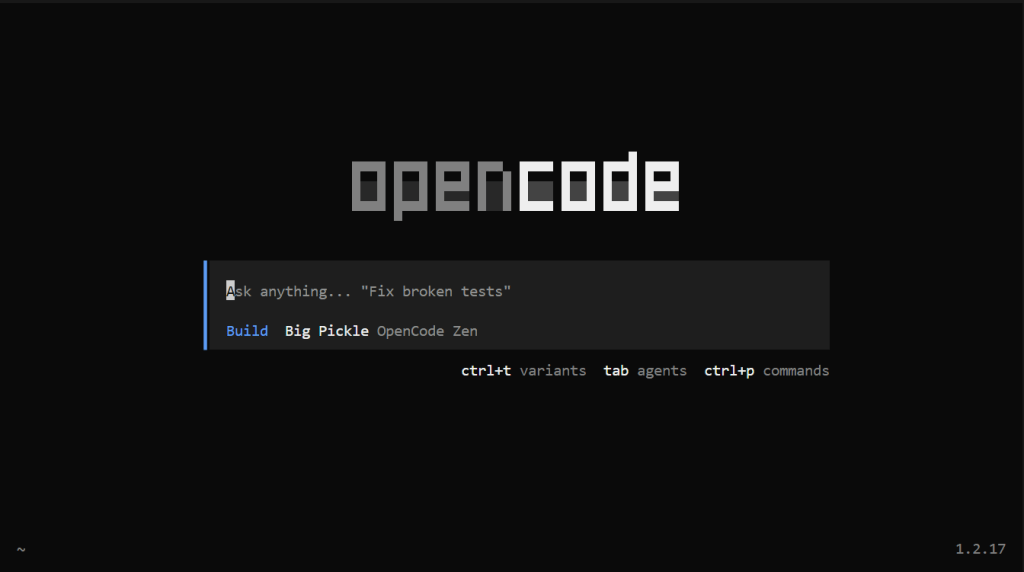
Note: You can exit the terminal app by typing /exit and pressing enter.
To instead install as a desktop application or add as an extension to IDEs (vscode, cursor etc.), follow the instructions here: OpenCode Download Page
Jozu Hub Account Setup and Authentication
Now, it's time to head over to Jozu Hub and create an account. Make sure to note the email (used as your username) and the password you choose; we'll need these later.
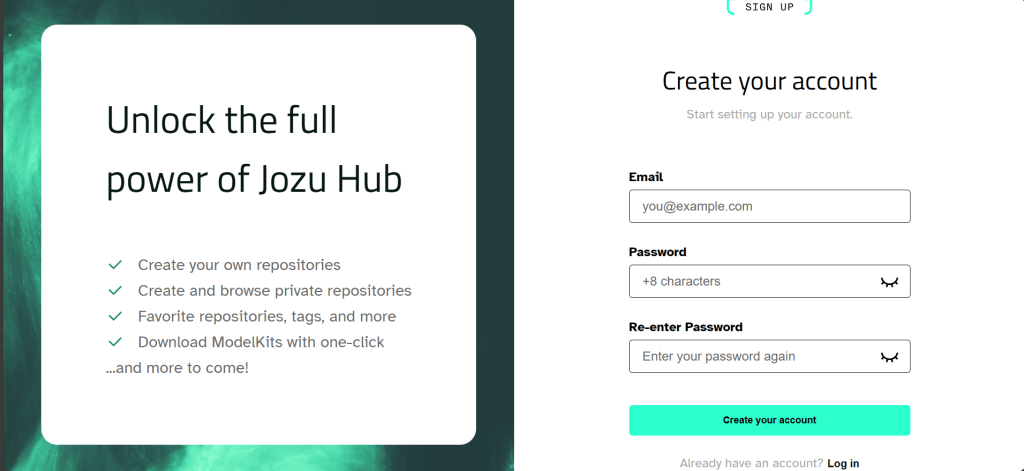
Then to authenticate our KitOps CLI with the Jozu Hub, run the following command:
kit login jozu.mlYou will be prompted to insert the username (email) and password you used to create the Jozu Hub account.
Note: As you are typing the password, it won't show on most terminals, so don't be surprised, just hit enter when you are done.
Importing an LLM from HuggingFace to Jozu Hub
As mentioned earlier, we'll be using the 4-bit quantized GGUF version of Qwen3.5-9B.
There are two ways to get it into Jozu Hub, i'll walk through both. The first is importing a HuggingFace repository directly through the Jozu Hub website. The second (the approach we'll actually use) is downloading the specific GGUF file and uploading it via code. We'll go this way because most GGUF repositories on HuggingFace bundle multiple quantization levels of the same model together, and we only need the 4-bit version.
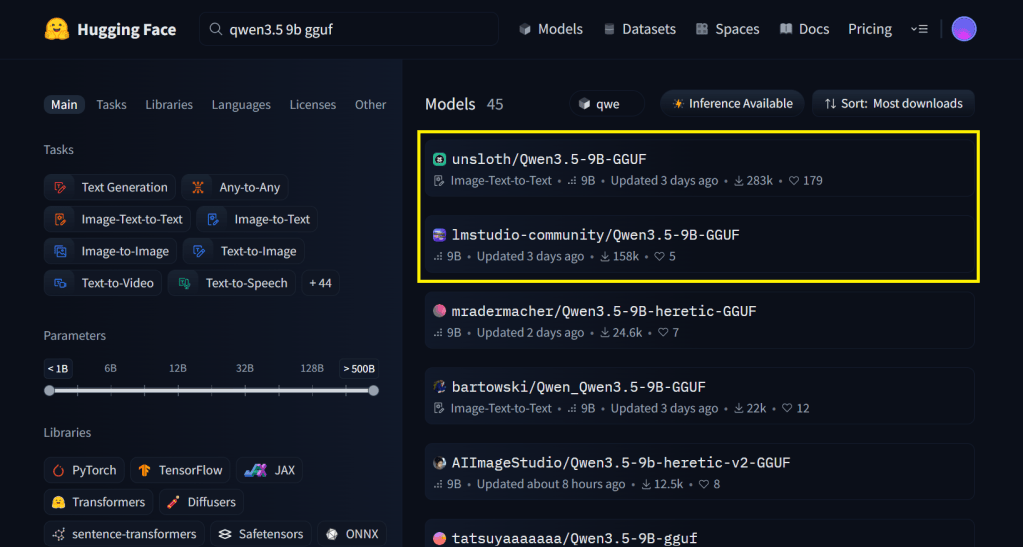
Before either methods we first need to search for the model GGUF file repo in Hugging Face, go there and search for the model name + "gguf", for example, in our case, the search will be "qwen3.5 9b gguf", then sort the results by most downloads and select one from a reputable organization or one with a high number of downloads. In the image, either Unsloth or lmstudio-community would be a good choice.
For the First Method:
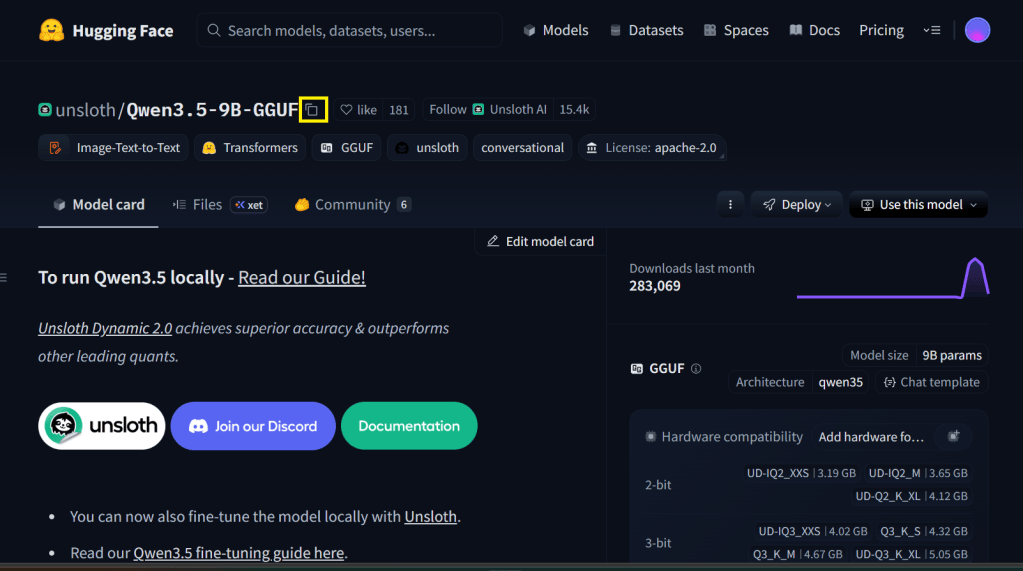
In the model page, click the clipboard icon beside the repo url to copy it (highlighted with a yellow box in the image below)
Now, head over to your Jozu Hub sandbox account, click on Add Repository located on the menu bar, then in the dropdown click Import from Hugging Face, the below form should popup, paste the HuggingFace url you copied, and input the desired name for your repository in Repository name:
Note: Some Hugging Face model repositories require an access token. If this is the case, it will be indicated on the Model Card page (most repositories do not require it, so can be skipped). You can generate one from the HuggingFace Access tokens page and paste it into the form.
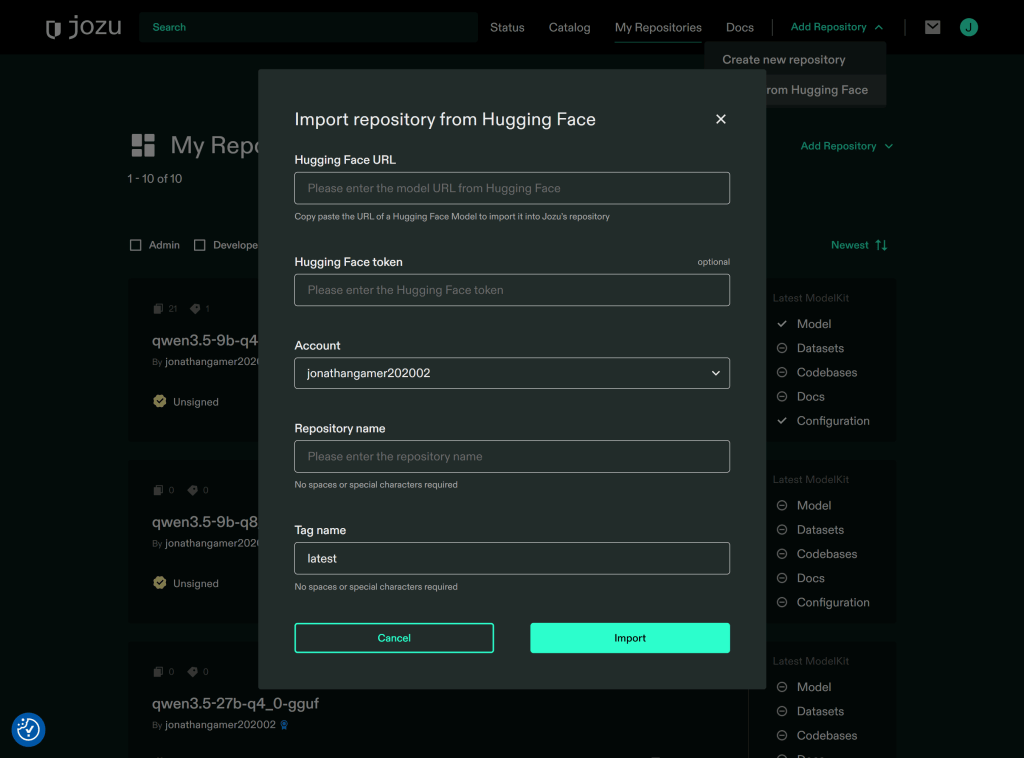
Then click import, and thats it when the import is complete you will be notified via email.
For the Second Method:
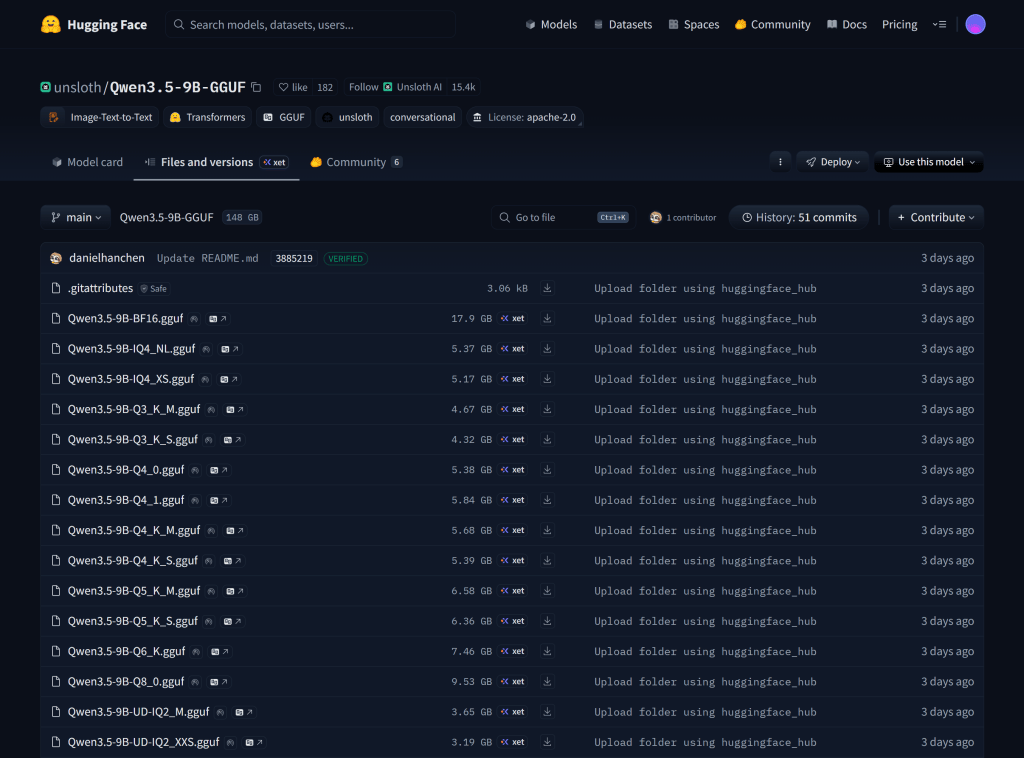
In the model page, click Files (or Files and versions) in the submenu. As shown in the image below, this repository contains multiple quantization levels for the model. This is why we didn't import the entire repository, as we only need a 4-bit quantized version (we are selecting Qwen3.5-9B-Q4_0.gguf).
Now run the below python code to download the GGUF file:
from huggingface_hub import hf_hub_download

# Will download the quantized GGUF to the given local directory
hf_hub_download(
    repo_id="unsloth/Qwen3.5-9B-GGUF",
    filename="Qwen3.5-9B-Q4_0.gguf",
    local_dir="./Qwen3.5-9B-Q4"
)
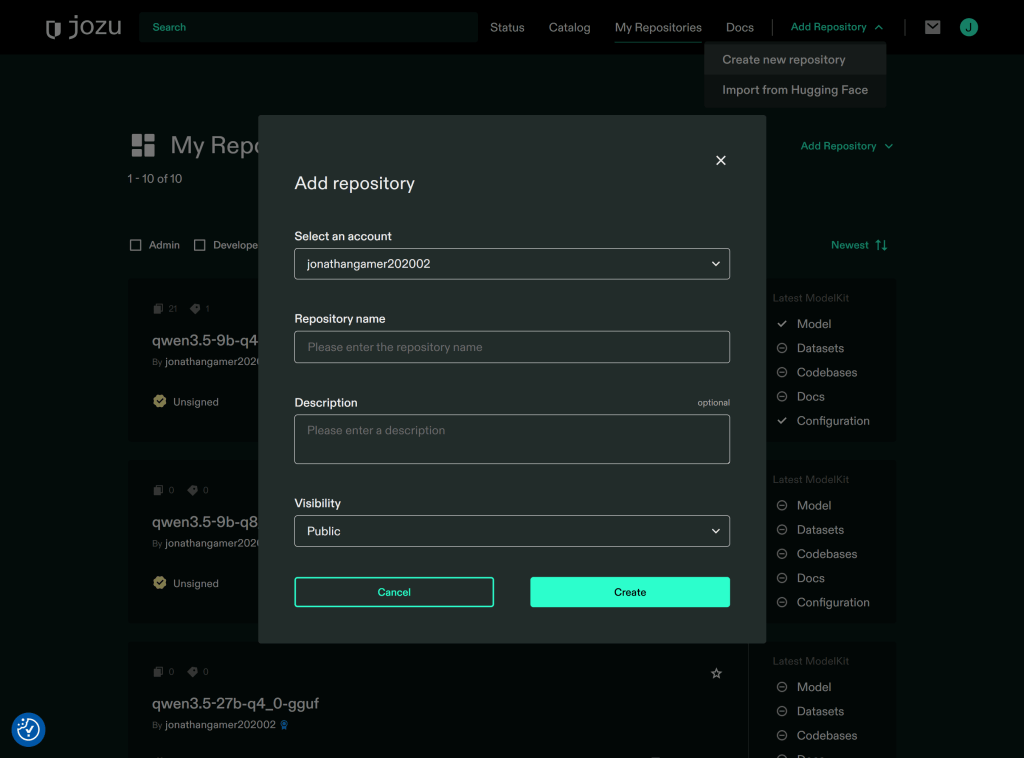
Then head back to your Jozu Hub repository, click on Add Repository located on the menu bar, then in the dropdown click Create new repository, the below form should popup, input the desired name for your repository in Repository name and click Create:
Packaging & versioning the model's gguf file as a ModelKit
The code below creates a Kitfile with the information of the artifacts we need bundled as a ModelKit.
from kitops.modelkit.kitfile import Kitfile

# Create new Kitfile
kitfile = Kitfile()

# Set basic metadata
kitfile.manifestVersion = "1.0"
kitfile.package = {
    "name": "Qwen3.5-9B-Q4_0-GGUF",
    "version": "1.0",
    "description": "Kitfile for Qwen3.5-9B-Q4_0-GGUF"
}

# Configure model information
kitfile.model = {
    "name": "Qwen3.5-9B-Q4_0-GGUF",
    "path": "Qwen3.5-9B-Q4/Qwen3.5-9B-Q4_0.gguf", # path to the GGUF file.
    "version": "1.0",
    "license": "Apache 2.0",
    "description": "Q4_0 GGUF file"
}

# You can also add other information like below:

# kitfile.code = [
#     {
#         "path": "...",
#         "description": "..."
#     }
# ]

# kitfile.datasets = [
#     {
#         "name": "dataset",
#         "path": "data/sample.csv",
#         "description": "full dataset",
#         "license": "Apache 2.0"
#     }
# ]

# kitfile.docs = [
#     {"path": "docs/README.md"},
#     {"path": "docs/LICENSE"}
# ]

# For more information on what you can add, see https://kitops.org/docs/pykitops/how-to-guides/

# You Can Save the Kitfile locally (Note: It is the Kitfile that specifies how the Modelkit will be bundled)
kitfile.save("Kitfile")
Upload the ModelKit to Jozu Hub
We can now push our ModelKit with the code below:
from kitops.modelkit.manager import ModelKitManager, UserCredentials

# Configure the ModelKit manager
# Note: The email prefix of jack123@gmail.com is just jack123

modelkit_tag = "jozu.ml/email-prefix-here/repo-name-here:latest" # all in lowercase
manager = ModelKitManager(
    working_directory=".",
    modelkit_tag=modelkit_tag,
    user_credentials=UserCredentials('full-email-here', 'password-here', namespace='repo-name-here')
)

# Assign your Kitfile
manager.kitfile = kitfile

# Pack and push to Jozu Hub
manager.pack_and_push_modelkit(save_kitfile=True)
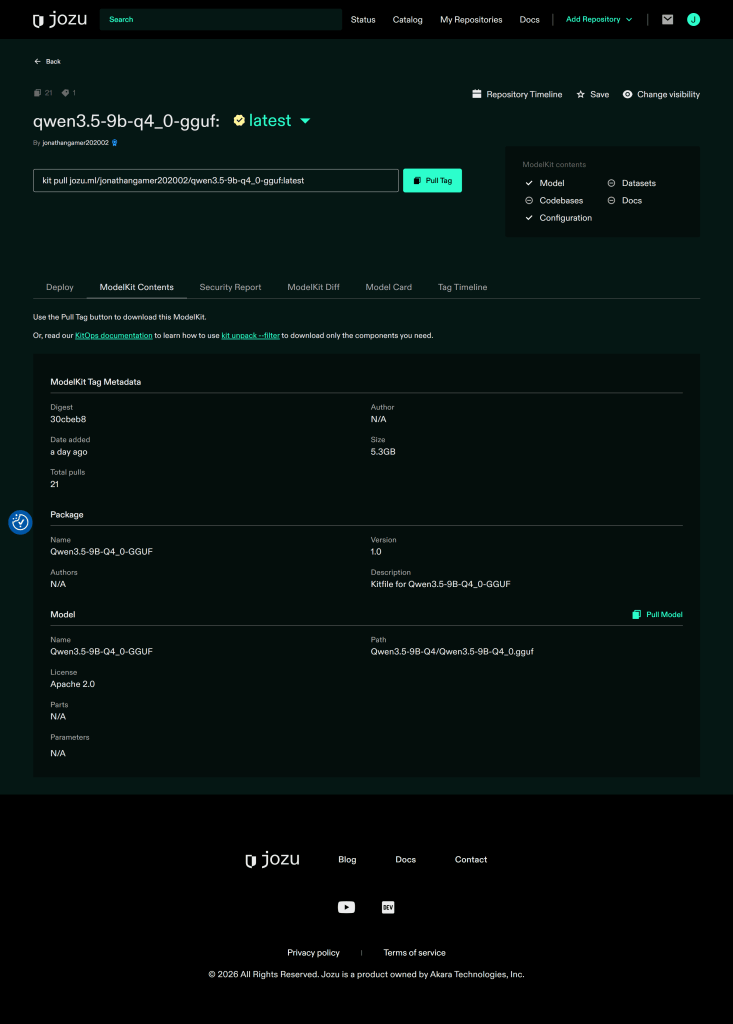
Then go to Jozu Hub to check that it has been pushed:
Running the Local Coding Agent
Launching the LLM on Jozu Rapid Inference Container
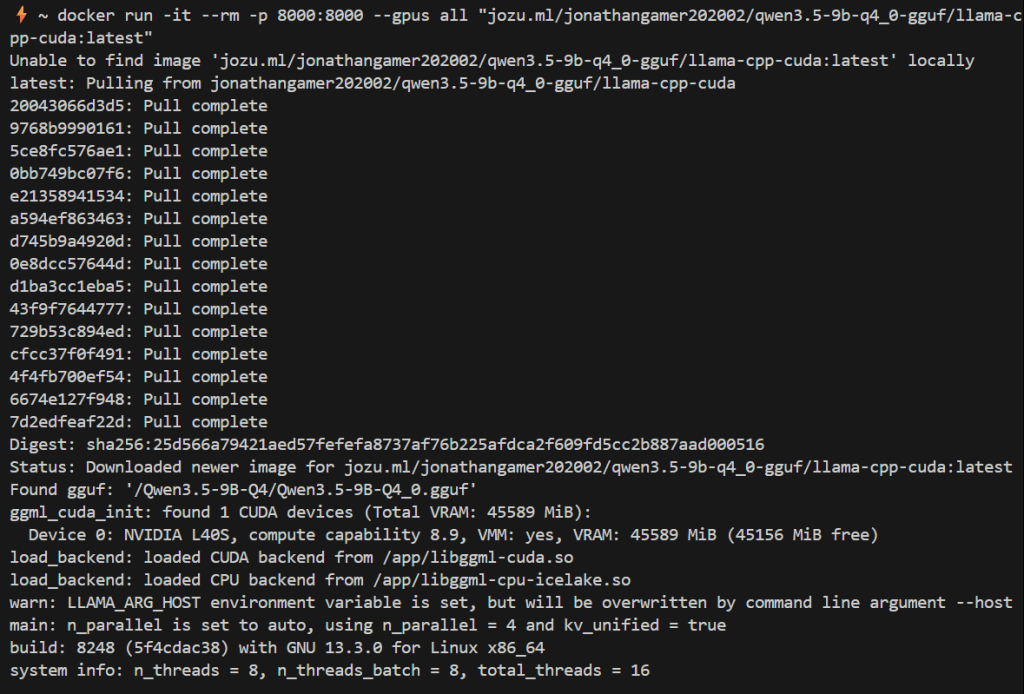
Run the command below to start the container:
docker run -it --rm -p 8000:8000 --gpus all "jozu.ml/email-prefix-here/repo-name-here/llama-cpp-cuda:latest"Notes:
- The email prefix of jack123@gmail.com is just jack123.
- You don't need any extra configuration to get Jozu RICs to use your gpu, it will automatically detect and utilize all available gpu nodes (as can be seen in the screenshot below).
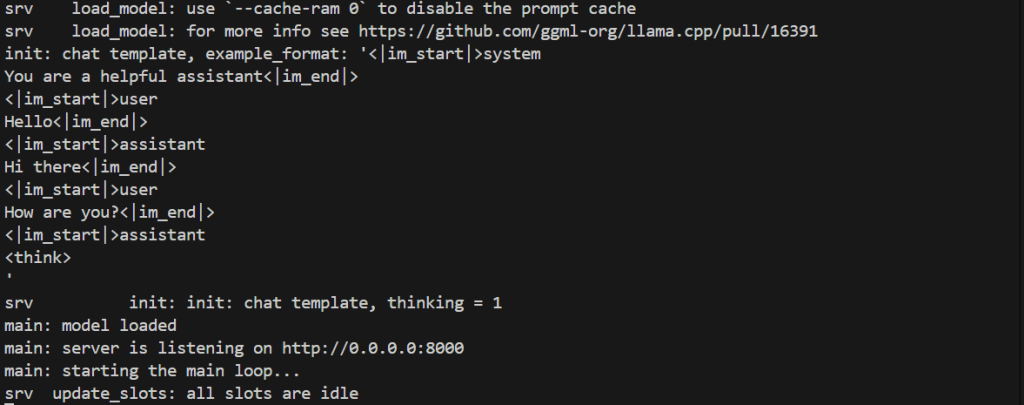
You should see a response similar to the screenshots below:
Connecting OpenCode to your local model
Before we can connect OpenCode to the model, it needs to be added to the config. In your current directory, create an opencode.json file and paste the contents below:
{
  "$schema": "https://opencode.ai/config.json",
  "provider": {
    "llama_server": {
      "npm": "@ai-sdk/openai-compatible",
      "name": "llama-server (local)",
      "options": {
        "baseURL": "http://localhost:8000/v1"
      },
      "models": {
        "qwen3.5-9B-q4_0.gguf": {
          "name": "qwen3.5-9b-q4_0-gguf (local model)",
          "limit": {
            "context": 128000,
            "output": 65536
          }
        }
      }
    }
  }
}
Now start opencode, type /models in the input, move down (↓), and select qwen3.5-9b-q4_0-gguf (local model).
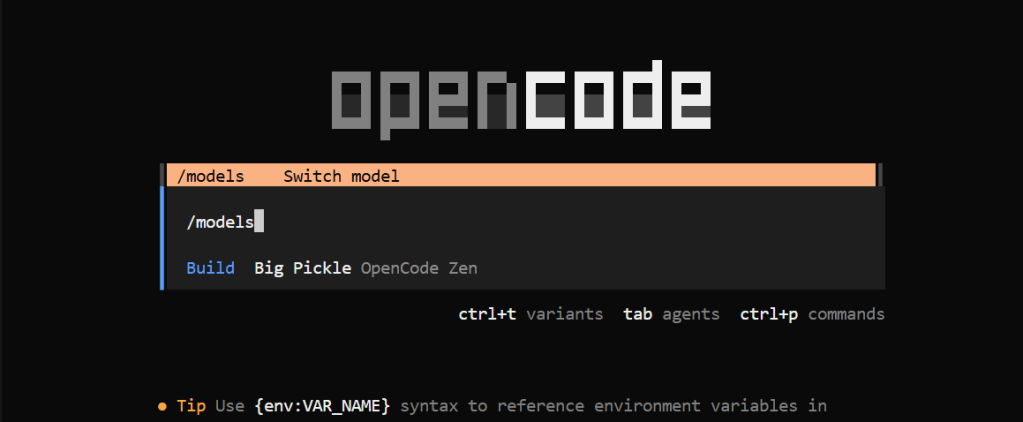
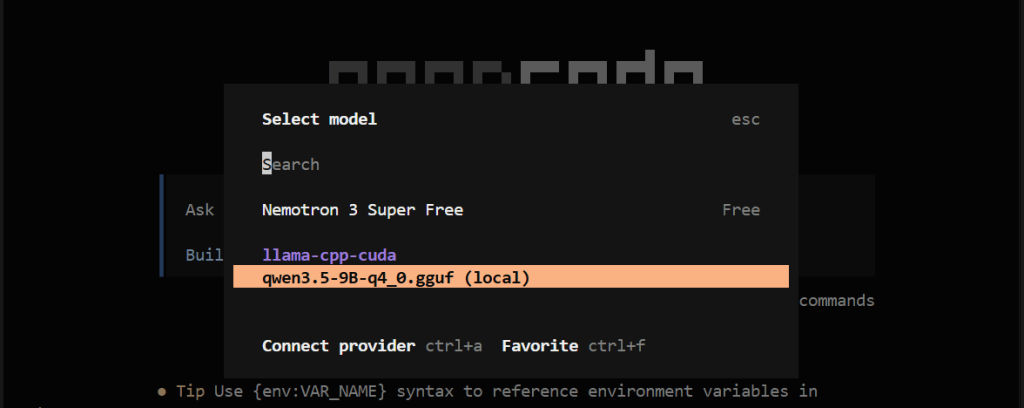
Building a website with your coding agent
Finally, let's test our coding agent with the prompt below:
Build a website for my upcoming coffee shop called Brew & Co, we're based in Austin Texas. We'll be serving coffee drinks, fresh pastries and sandwiches, add some example menu items (use large food emojis as icons) and realistic prices, make it look appealing. We're open Monday to Friday 7am–6pm and Saturday to Sunday 8am–3pm. For contact use contact-us@brew8co.shop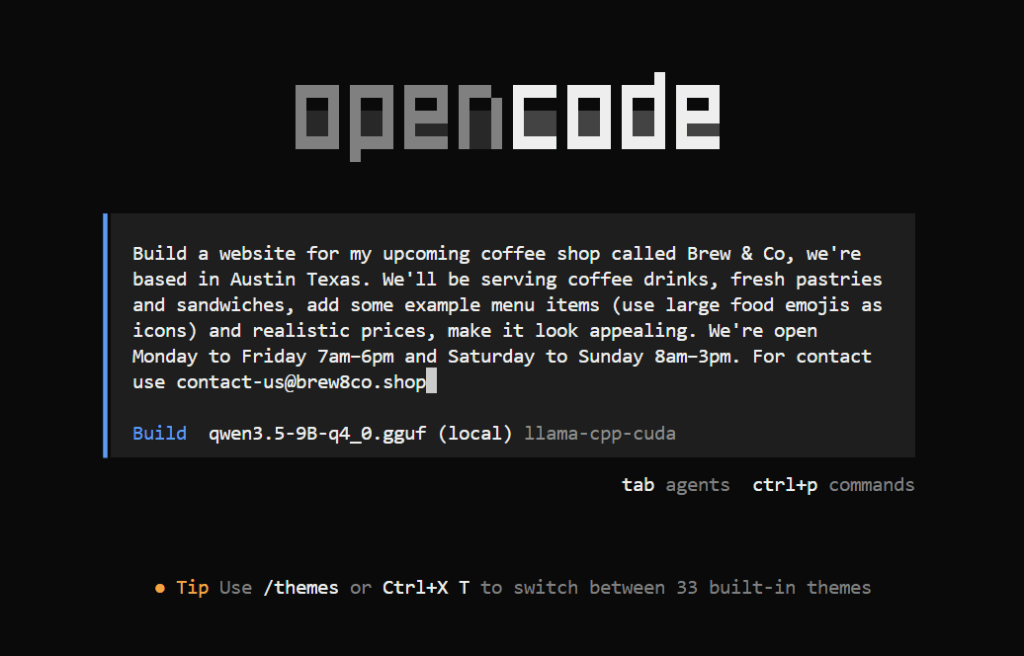
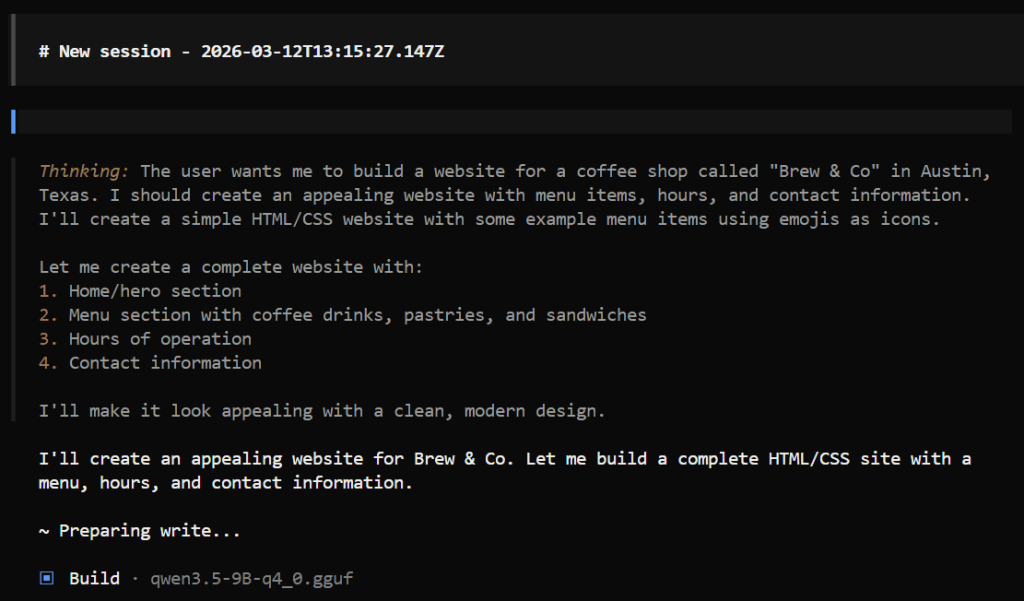
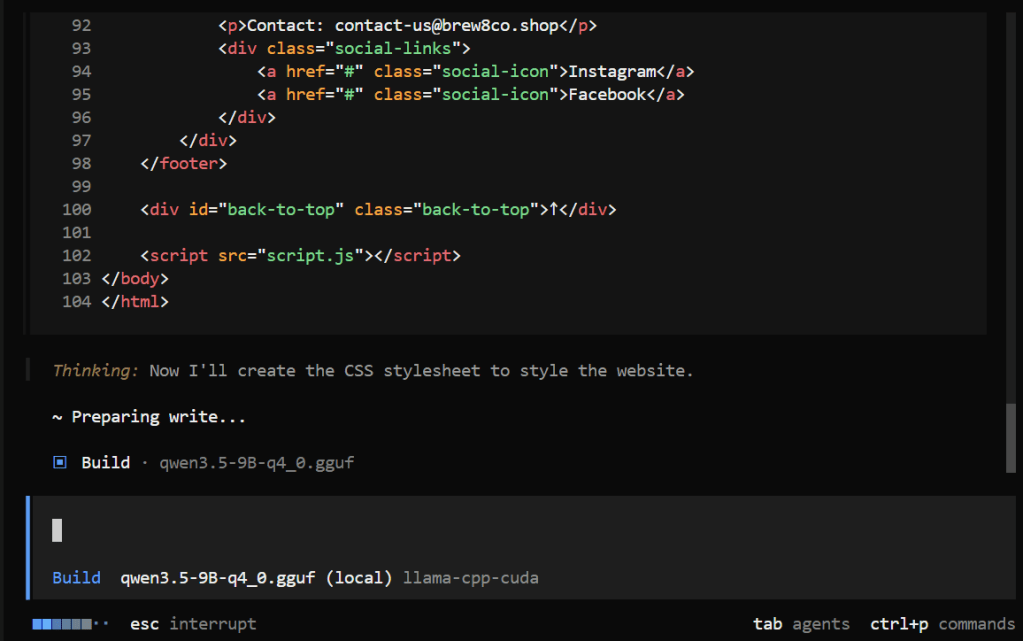
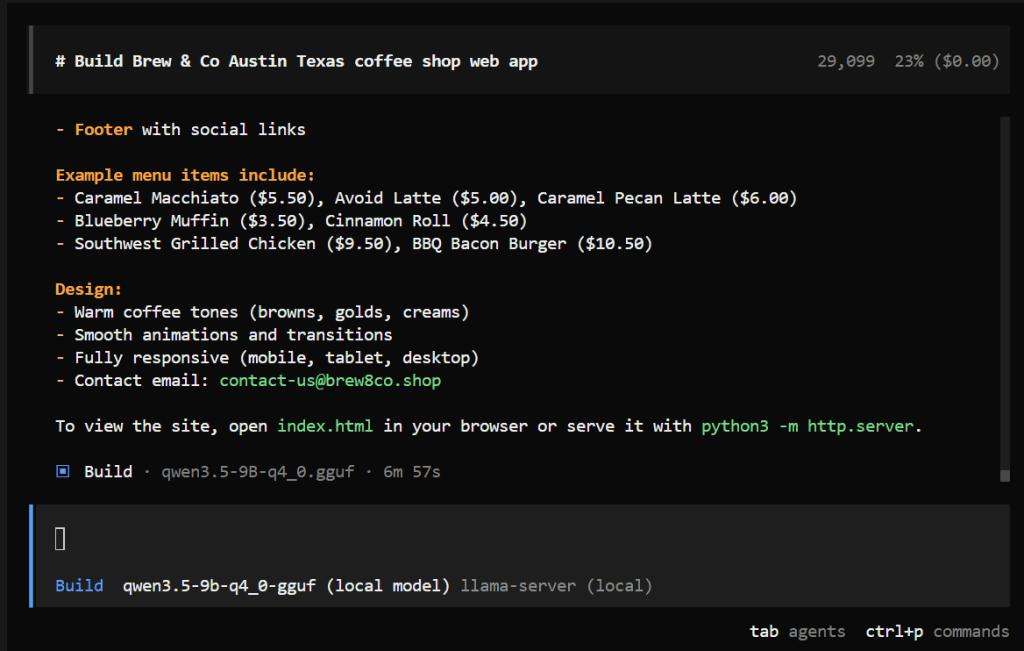
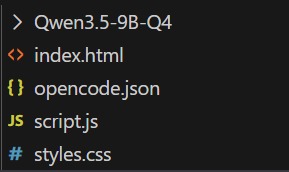
Your current directory should look something similar to this:
As for the website itself, here is what mine looks like:
Conclusion
Recap of What Was Built
In this tutorial, we walked through downloading a quantized GGUF from Hugging Face, packaging and versioning it as a ModelKit, pushing it to Jozu Hub, and spinning it up locally with Jozu Rapid Inference Container. We then connected it to OpenCode and used it to build a real-world web application for a coffee & bakery shop owner.
Additional Resources / What's Next
If you want to go deeper into local LLM deployments, AI coding agents, and production-grade AI/ML workflows with Jozu Hub, the resources below are a great place to continue:
- Jozu Blog (best practices, architecture deep dives, and production guidance): https://jozu.com/blog
- KitOps Documentation (detailed guides on ModelKits, versioning, and ML artifact management): https://kitops.org/docs
- Jozu Hub Docs (RICs, audits, governance, deployments, etc.): https://jozu.ml/docs
- OpenCode Documentation (providers, configuration, and advanced agent workflows): https://opencode.ai/docs
Head over to jozu.com to explore the public model catalog and start running your own local AI workflows today.
Note: This blog has an accompanying GitHub repository that contains the code and config used in this tutorial. Check it out at jozu-ric-local-coding-agent.