

Introduction
Local inference has largely solved the data privacy and cost concerns of relying on third-party cloud APIs. However, by moving away from massive cloud GPU clusters, one limitation becomes much more noticeable: generation speed. The default way LLMs generate text is through autoregressive decoding, which produces one token at a time and requires a full forward pass through the model for every token. This makes local inference feel sluggish, especially during long-form generation or complex reasoning tasks.
Speculative decoding is one of the industry's standard techniques for overcoming this bottleneck. Instead of relying entirely on the large model for every token, a smaller, faster "draft" model proposes several tokens ahead while the large "target" model verifies them all in a single batched pass, accepting only the tokens it would have generated anyway, resulting in faster generation with identical output quality. In this tutorial, we'll see how Jozu makes it straightforward to put this into practice locally. We'll import a target model and a compatible draft model from Hugging Face to Jozu Hub, serve them together using a Jozu Rapid Inference Container (RIC) with speculative decoding enabled, and run a speed test comparison against standard autoregressive decoding.
How Speculative Decoding Works
The draft model vs target model relationship
Speculative decoding works through a collaboration between two models with different roles. The target model is your primary, high quality LLM (e.g., Qwen3-30B-A3B). It has the reasoning capability and knowledge you need, but running it autoregressively is expensive. The draft model is a much smaller, faster model (e.g., a 1B - 4B LLM or 5-10x smaller than the target model). Its job is to make rapid, educated guesses about what the next few tokens should be.
The Proposal and Verification Loop
Speculative decoding replaces sequential token generation with a two-step loop:
- Proposal: The draft model quickly generates a sequence of k tokens (typically 4 to 8) autoregressively. Because the draft model is small, this step requires minimal compute.
- Verification: The target model evaluates all k proposed tokens in a single parallelized forward pass, accepting the ones that match its own expected output distribution. The moment it disagrees with a token at position n, it discards that token and everything after it, outputs its own correct token for that position, and the draft model resumes proposing from that corrected state.
In the best case, you generate several tokens for the cost of roughly one target model forward pass. In the worst case, every candidate is rejected and only one token is produced, the same as standard autoregressive decoding.
What Makes a Good Draft and Target Pairing?
You cannot pair any two models together and expect a speedup. Three factors determine whether a pairing works:
Shared tokenizer: This one is a hard requirement. The draft and target models must use the exact same tokenizer and vocabulary. If they differ, the draft's proposed token IDs will not map correctly to the target's verification step, breaking the process entirely.
Same model family: The best results come from pairing models from the same family, for example a Qwen3-30B-A3B-instruct target with a Qwen3-0.6B draft. Because they were trained on similar data distributions, the draft model's guesses are far more likely to align with the target model's expectations, producing a high acceptance rate which means greater speedup.
The right size gap: The draft model should be significantly smaller than the target, typically at least 5 to 10 times fewer parameters. If the draft model is too large, the compute saved on the target is offset by the cost of running the draft. If it is too small or too architecturally different, acceptance rates drop and the overhead of running the draft model actually makes the inference slower.
What Is Jozu Hub and Why Use It?
A model registry and deployment platform designed for AI projects
AI projects are made up of many assets: model weights, custom or company datasets, configuration files, licenses, documentation, and more. All of these change across experiments and fine-tuning runs, and teams need a way to keep track of their varying versions.
Jozu Hub helps teams securely manage, govern, and deploy these assets. At its heart is the ModelKit, a packaging format bundling all the artifacts of your AI project (datasets, code, configs, documentation, model weights, etc.) into a single OCI-compliant artifact. Think of it like a git repository that tracks and versions the project, but packaged in a way that container registries already understand.
Jozu's governance and security audit
For enterprises, security and compliance are non-negotiable. Jozu Hub is designed for this from the ground up:
-
Full Provenance: Jozu Hub maintains a full audit trail for every ModelKit, providing a complete chain of custody from creation to production deployment. You can see exactly which model is running in production and trace it back to the precise code, data, configurations, and artifacts that were packaged and shipped with it.
-
Security Scanning & Policy Gates: Before a model is deployed, Jozu Hub automatically scans it for vulnerabilities, license compliance issues, and policy violations. You can set rules to block deployments if scans fail, require manual approval, or enforce specific security rules.
-
Tamper-Proof Packaging: ModelKits can be cryptographically signed using industry-standard tools like Cosign. Any unauthorized change to the contents, whether to model weights, datasets, or any other artifact, will be immediately detected through signature verification, preventing compromised artifacts from entering production.
Key benefits of using ModelKits
-
Selective unpacking: Unpack only what you need (e.g., just the model weights, just the dataset, or just the configs). This speeds up pipelines, reduces your compute overhead, and avoids unnecessary data movement.
-
No duplication for shared assets: Common assets like datasets or configuration files can be reused across multiple ModelKits without bloating storage.
-
Proper version control: With ModelKit, all project artifacts are versioned and bundled together, enabling full reproducibility and traceability. You can also use familiar, registry-native tags (for example,
:latest,:staging,:prod). -
Standard-based and portable: Because ModelKits are OCI-compliant, they work with any container registry and can be managed just like any container image. There's no vendor lock-in. You can store them alongside your regular container images and manage them using the same authentication, RBAC, and access controls you already have in place.
Jozu Rapid Inference Containers (RICs)
Once you have the LLM's ModelKit in Jozu Hub, you don't need to write custom inference API code just to serve the model. Jozu automatically generates a Rapid Inference Container (RIC) for you. These are pre-configured, optimized inference containers built directly from your ModelKit that are ready to serve your model in production.
Why this matters:
-
Zero configuration: You don't write Dockerfiles, configure servers, or set up inference APIs. Jozu does it automatically based on your model format and metadata. You can get a llama.cpp RIC for your GGUF model, or a vLLM RIC for your Safetensors model.
-
Optimized for performance: RICs are tuned for inference workloads, not bloated with unnecessary dependencies.
-
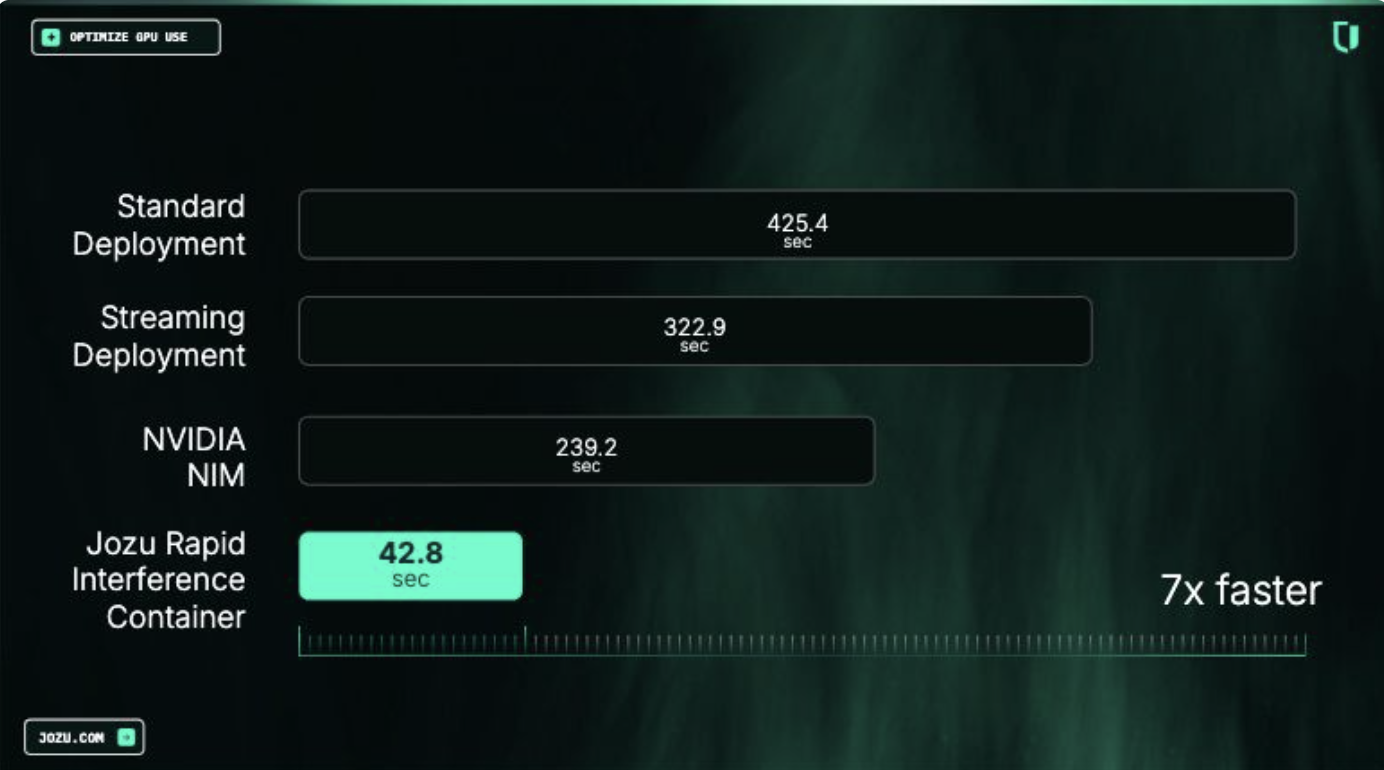
7x faster deployment (based on Jozu benchmarks): Because RICs are pre-built and cached, spinning up a new model server is significantly faster than traditional container deployments. The image below shows an internal benchmark comparison with other solutions.
System Requirements and Installation Guide
GPU and Storage Requirements for Local LLM Inference
AI/ML inference can be compute and resource intensive, but your exact needs depend on the model size and quantization level you choose.
GPU vs CPU: Understanding the Performance Gap
GPUs are fundamentally better for LLM inference because they are built with thousands of cores designed for parallel computation, making them significantly faster at the matrix multiplications that neural networks perform during inference. For a real-world comparison: a mid-range GPU like the RTX 4070 Ti can generate 30 to 50 tokens per second on a 7B model, while a modern CPU with 8 or more cores will inference the same model at around 5 to 10 tokens per second. This gap matters even more for speculative decoding since both the draft and target models need to run efficiently for the technique to deliver any speedup.
Calculating Your Needs: Model Size, Quantization, and Memory
Memory requirements are primarily determined by the model's parameter count and the quantization used.
Quantization is a compression technique that reduces the numerical precision of model weights, dramatically lowering memory usage at a relatively small cost to accuracy. This is what makes running large models on consumer-grade hardware practical.
A good rule of thumb for estimating memory needs:
- Full Precision (FP16, BF16): ~2 GB per 1B parameters
- 8-bit Quantization (INT8, Q8_K_M): ~1 GB per 1B parameters
- 4-bit Quantization (Q4_K_M, Q4_0): ~0.5 GB per 1B parameters
- 2-bit Quantization (Q2_K_XL): ~0.25 GB per 1B parameters
Note: With speculative decoding, you are loading two models simultaneously: the target model and the draft model. This means your total VRAM requirement is the sum of both models' footprints plus inference overhead. For example, if you are running a 4-bit quantized 8B target model (~4 GB) alongside a 4-bit quantized 1B draft model (~0.5 GB), you need to budget for both plus additional memory for the KV cache and inference overhead. In total, allocating around 10 GB extra on top of your combined model weights is a safe baseline.
Storage Considerations
For disk storage, an NVMe SSD is strongly recommended for fast model loading times and reduced I/O bottlenecks. Loading a large model from an NVMe SSD is dramatically faster than from a traditional hard drive, often reducing load time from several minutes to just a few seconds. Since you are managing two model files here, fast storage becomes even more relevant.
For a more detailed reference on local inference hardware, check out: LLM Hardware Requirements & Setup for Local Environment - ML Journey
In this tutorial, I'll be using an NVIDIA A100 (40GB) GPU. The target model we'll run is Qwen3-30B-A3B (1 bit quantized) and the draft model is Qwen3-0.6B (8 bit quantized). A modern NVIDIA GPU with at least 25GB of VRAM should be sufficient to follow along.
Required Tooling and Environment Setup
For this tutorial, we'll be working on a Ubuntu Linux distribution, and for convenience, we'll also use Homebrew. For other operating systems, such as macOS, Windows, and other Linux distros, we'll provide alternative installation instructions and links where needed.
Note: We assume you already have Docker installed. If not, follow the instructions at Install | Docker Docs
Installing Homebrew (Linux and macOS only)
Open your terminal and run the following command:
/bin/bash -c "$(curl -fsSL https://raw.githubusercontent.com/Homebrew/install/HEAD/install.sh)"Add Homebrew to the path, and apply it to the current session:
# For Linux
echo 'eval "$(/home/linuxbrew/.linuxbrew/bin/brew shellenv)"'  >> ~/.bashrc
eval "$(/home/linuxbrew/.linuxbrew/bin/brew shellenv)"

# For macOS M1/M2/M3
echo 'eval "$(/opt/homebrew/bin/brew shellenv)"' >> ~/.zprofile
eval "$(/opt/homebrew/bin/brew shellenv)"

# For macOS (Intel)
echo 'eval "$(/usr/local/bin/brew shellenv)"'  >> ~/.zprofile
eval "$(/usr/local/bin/brew shellenv)"
Install Homebrew dependencies (Linux only)
# For Debian or Ubuntu
sudo apt-get install build-essential procps curl file git

# For Fedora
sudo dnf group install development-tools
sudo dnf install procps-ng curl file

# For CentOS Stream or RHEL
sudo dnf group install 'Development Tools'
sudo dnf install procps-ng curl file

# For Arch Linux
sudo pacman -S base-devel procps-ng curl file git
Install the KitOps CLI
For Linux / macOS users, run the following command to use Homebrew to install:
brew tap kitops-ml/kitops
brew install kitops
For Windows users, install instructions are here: Install KitOps CLI - macOS, Windows, Linux | KitOps
Also, check that the installation was successful:
kit versionInstall the Required Python Libraries
We'll assume you have Python already installed. So run the following command:
pip install kitops huggingface_hubJozu Hub Account Setup and Authentication
Now, it's time to head over to Jozu Hub and create an account. Make sure to note the email (used as your username) and the password you choose; we'll need these later.
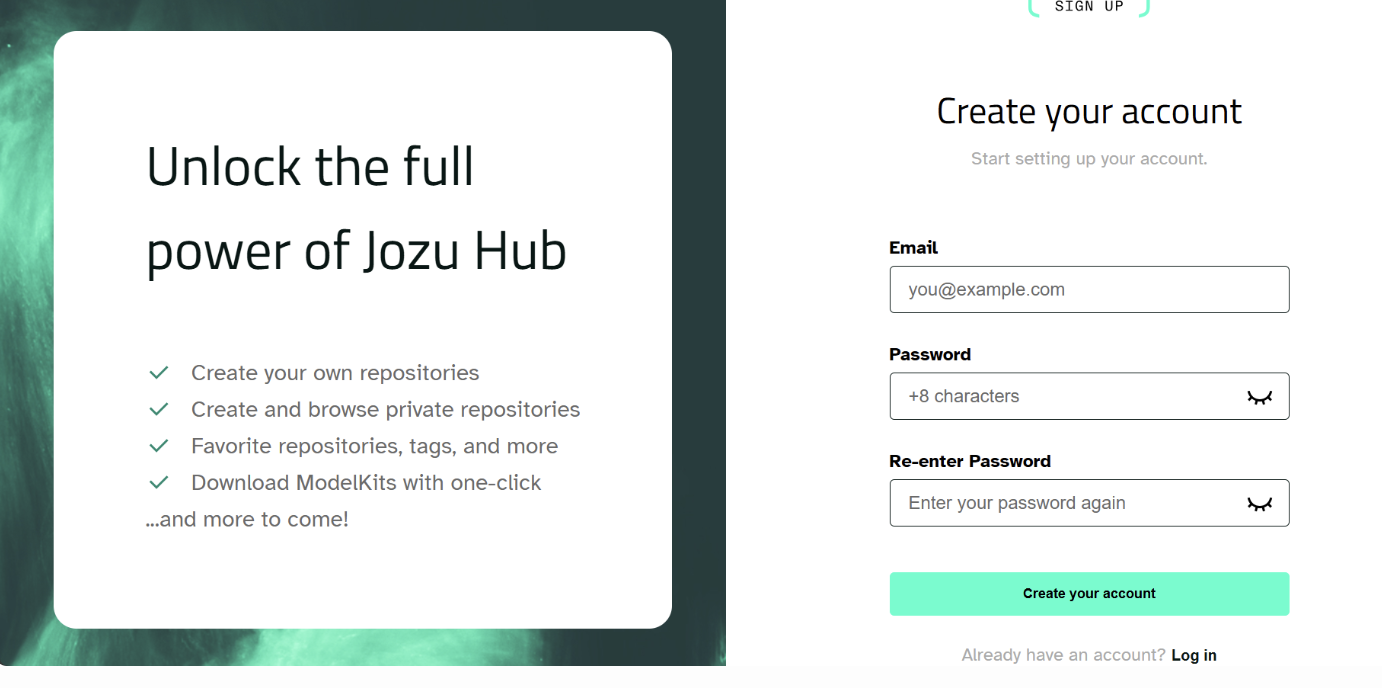
Then to authenticate our KitOps CLI with the Jozu Hub, run the following command:
kit login jozu.mlYou will be prompted to insert the username (email) and password you used to create the Jozu Hub account.
Note: As you are typing the password, it won't show on most terminals, so don't be surprised, just hit enter when you are done.
Importing the Target and Draft LLM Models from Hugging Face to Jozu Hub
There are two ways to get a model into Jozu Hub, and I'll walk through both. The first is importing a HuggingFace repository directly through the Jozu Hub website. The second, which is the approach we'll actually use, is downloading the specific model GGUF files and uploading them programmatically. We're going this route because most GGUF repositories on HuggingFace bundle multiple quantization levels of the same model together, and we only need one.
Before either method, we first need to search for the model GGUF file repo in Hugging Face. Go there and search for the model name + "gguf"; for example, in our case, the search will be "qwen3 30b gguf" and later "qwen3 0.6b gguf". Then sort the results by most downloads and select one from a reputable organization or one with a high number of downloads. In this case, we'll select Unsloth because of their dynamic quantizations.
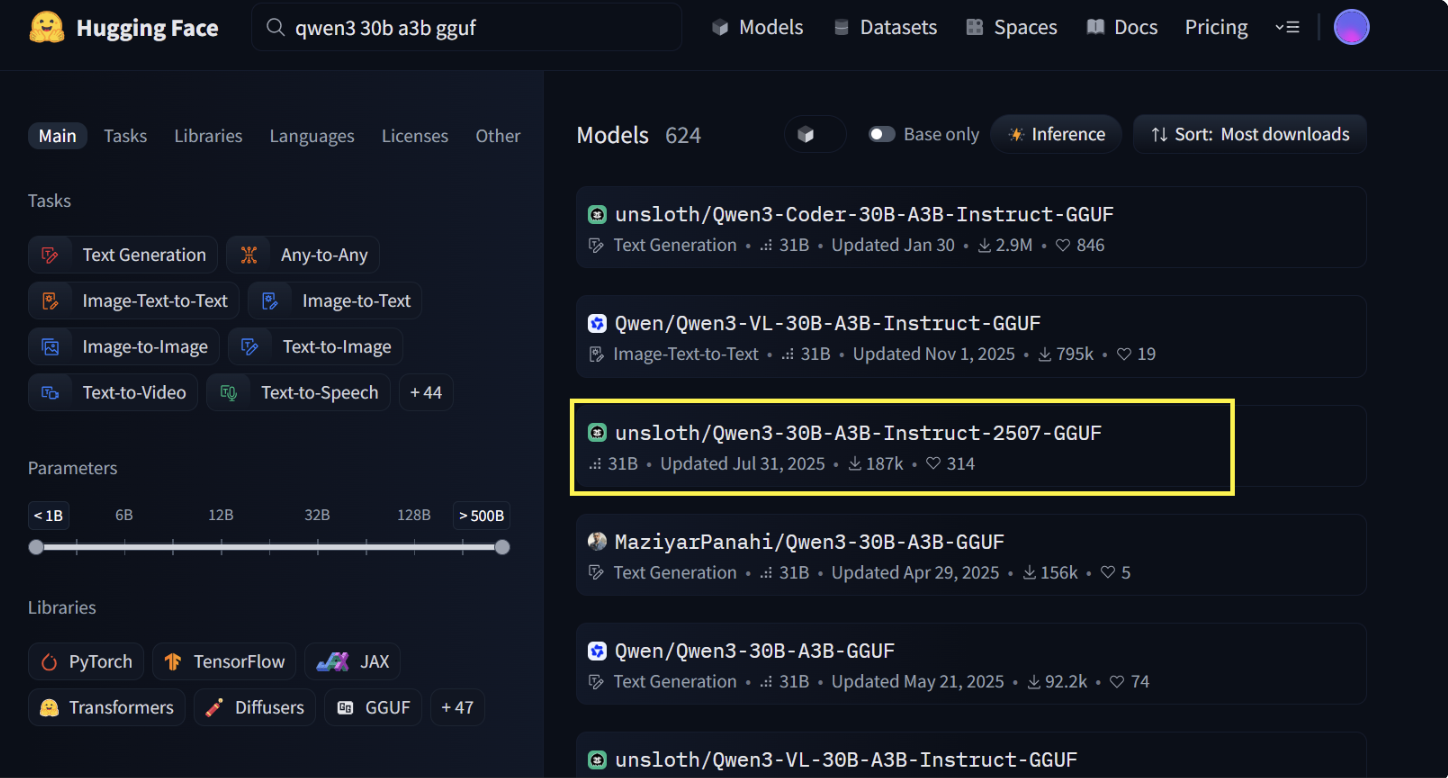
For the First Method:
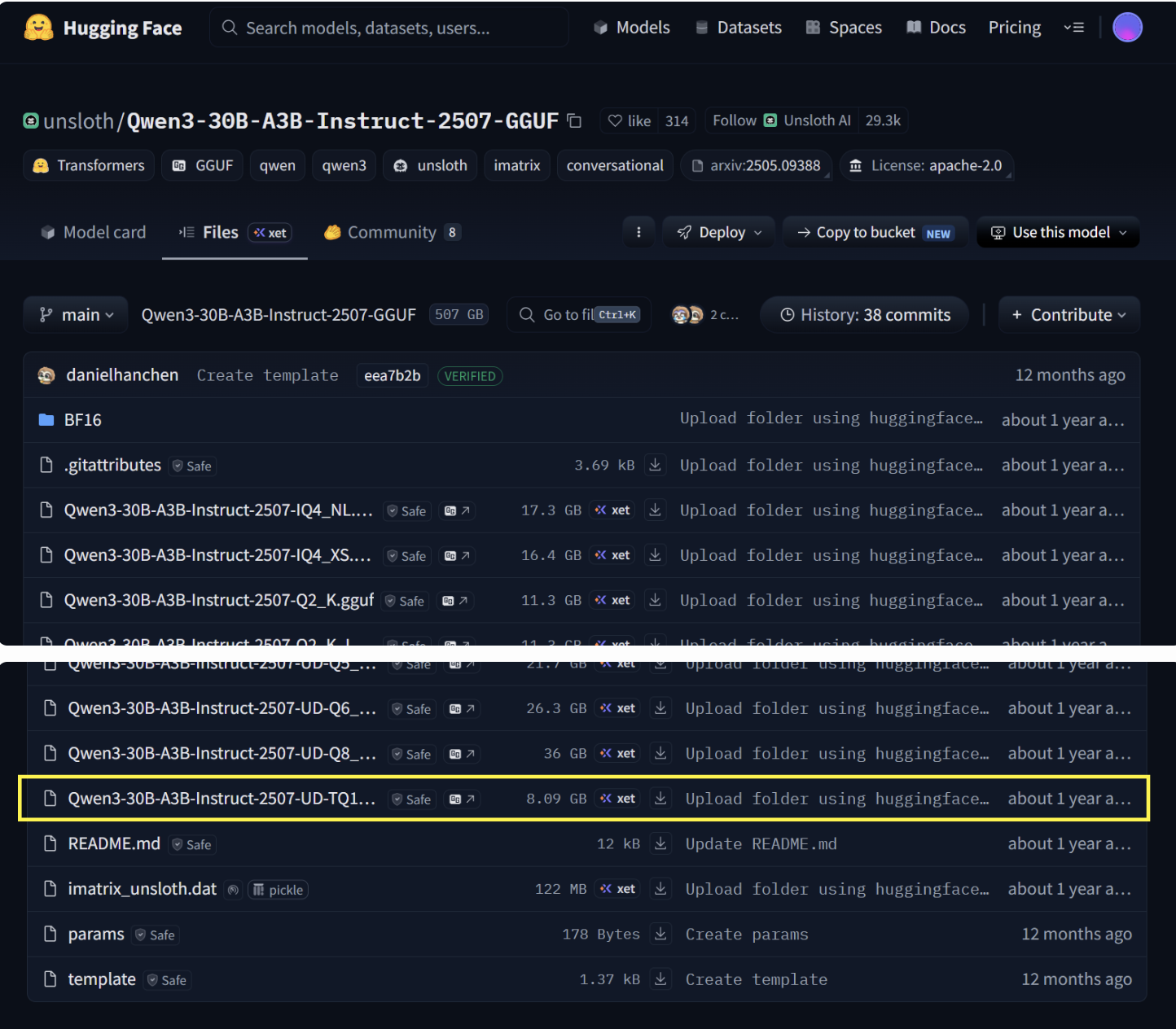
In the model page, click the clipboard icon beside the repo url to copy it (highlighted with a yellow box in the image below)
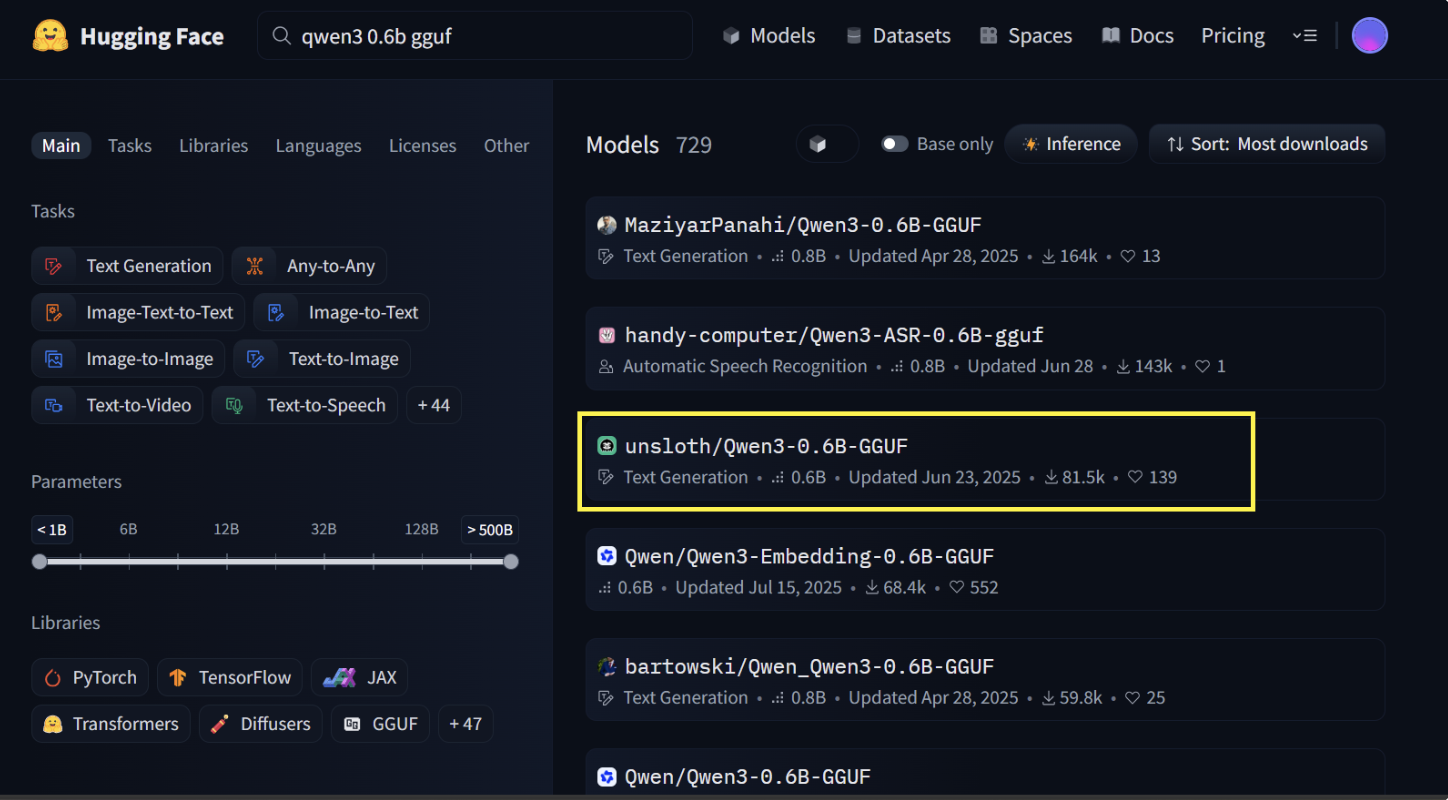
Note: The same applies for the draft model.
Now, head over to your Jozu Hub repository, click on Add Repository located on the menu bar, then in the dropdown click Import from Hugging Face. The below form should pop up; paste the HuggingFace url you copied, and input the desired name for your repository in Repository name:
Note: Some Hugging Face model repositories require an access token. If this is the case, it will be indicated on the Model Card page (most repositories do not require it, so this can be skipped). You can generate one from the HuggingFace Access tokens page and paste it into the form.
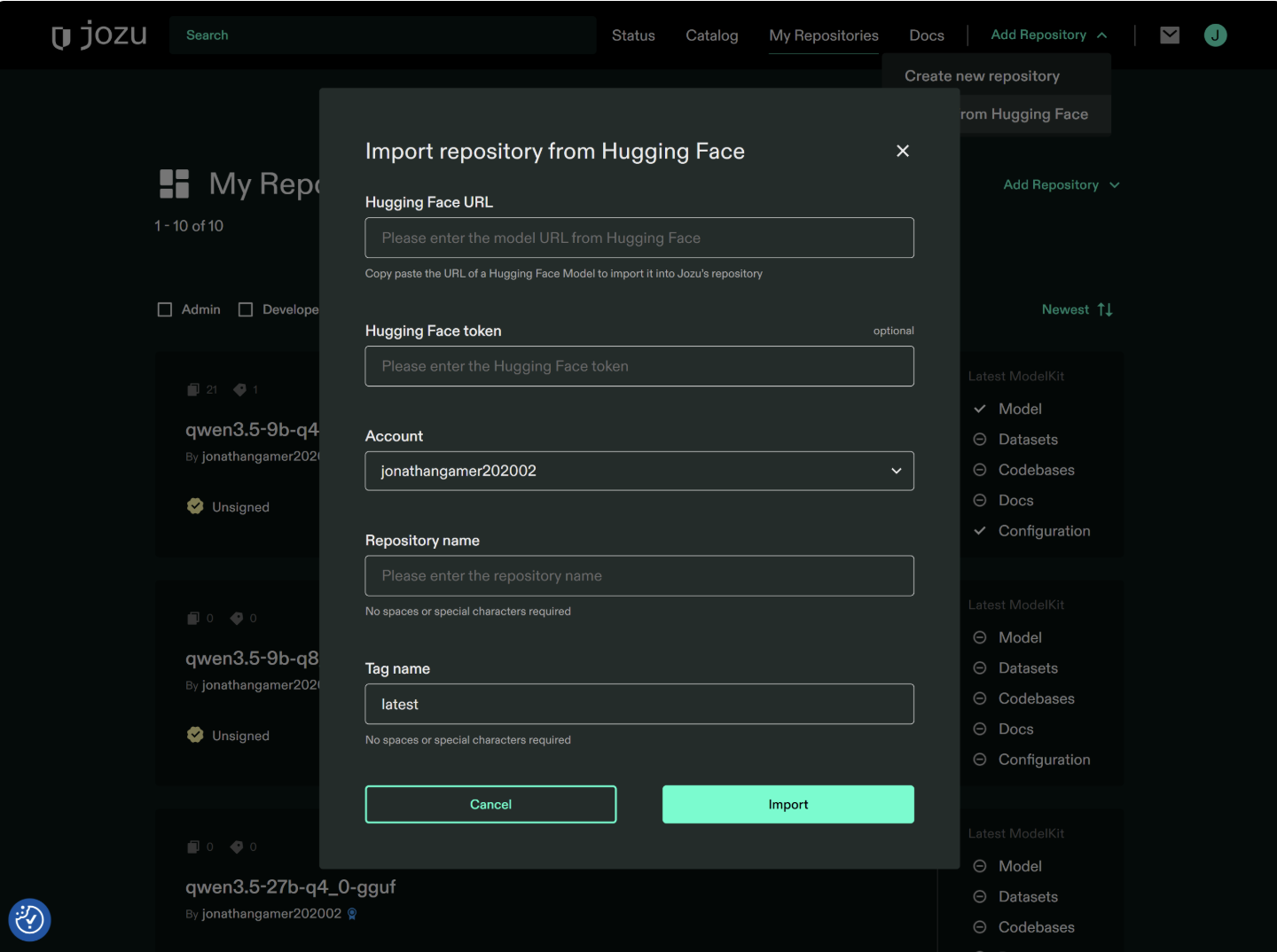
Then click Import. When the import is complete, you'll be notified via email.
For the Second Method:
In the model page, click Files (or Files and versions) in the submenu. As shown in the image below, this repository contains multiple quantization levels for the model. This is why we didn't import the entire repository, as we only need the 1-bit quantized version for the Target model (Qwen3-30B-A3B-Instruct-2507-UD-TQ1_0.gguf) and 8-bit quantized version for the Draft model (Qwen3-0.6B-Q8_0.gguf).
Note: The same applies for the draft model.
Now run the below python code to download the GGUF files:
from huggingface_hub import hf_hub_download

# Will download the quantized GGUF to the given local directory

# Download the Target model
hf_hub_download(
    repo_id="unsloth/Qwen3-30B-A3B-Instruct-2507-GGUF",
    filename="Qwen3-30B-A3B-Instruct-2507-UD-TQ1_0.gguf",
    local_dir="./Qwen3-family"
)

# Download the Draft gguf model
hf_hub_download(
    repo_id="unsloth/Qwen3-0.6B-GGUF",
    filename="Qwen3-0.6B-Q8_0.gguf",
    local_dir="./Qwen3-family"
)
Packaging and publishing as a ModelKit to Jozu Hub
The code below creates a Kitfile with the information of the artifacts we need bundled as a ModelKit.
from kitops.modelkit.kitfile import Kitfile

# Create new Kitfile
kitfile = Kitfile()

# Set basic metadata
kitfile.manifestVersion = "1.0"
kitfile.package = {
    "name": "speculative-decoding-with-jozu",
    "version": "1.0",
    "description": "Kitfile for Target and Draft gguf models"
}

# Configure model information
kitfile.model = {
    "name": "Qwen3-30B-A3B-Instruct-GGUF",
    "path": "Qwen3-family/Qwen3-30B-A3B-Instruct-2507-UD-TQ1_0.gguf", # path to the Target GGUF file.
    "version": "1.0",
    "license": "Apache 2.0",
    "description": "",
    "parts": [
        {
            "name": "Qwen3-0.6B-GGUF",
            "path": "Qwen3-family/Qwen3-0.6B-Q8_0.gguf"
        }
    ]
}

# You can also add other information like below:

# kitfile.code = [
#     {
#         "path": "...",
#         "description": "..."
#     }
# ]

# kitfile.datasets = [
#     {
#         "name": "dataset",
#         "path": "data/sample.csv",
#         "description": "full dataset",
#         "license": "Apache 2.0"
#     }
# ]

# kitfile.docs = [
#     {"path": "docs/README.md"},
#     {"path": "docs/LICENSE"}
# ]

# For more information on what you can add, see https://kitops.org/docs/pykitops/how-to-guides/

# Save the Kitfile locally (Note: It is the Kitfile that specifies how the ModelKit will be bundled)
kitfile.save("Kitfile")
We can now push our ModelKit to Jozu Hub with the code below:
from kitops.modelkit.manager import ModelKitManager, UserCredentials

# Configure the ModelKit manager
# Note: The email prefix of jack123@gmail.com is just jack123

modelkit_tag = "jozu.ml/email-prefix-here/speculative-decoding-with-jozu:latest" # all in lowercase
manager = ModelKitManager(
    working_directory=".",
    modelkit_tag=modelkit_tag,
    user_credentials=UserCredentials('full-email-here', 'password-here', namespace='speculative-decoding-with-jozu')
)

# Assign your Kitfile
manager.kitfile = kitfile

# Pack and push to Jozu Hub
manager.pack_and_push_modelkit(save_kitfile=True)
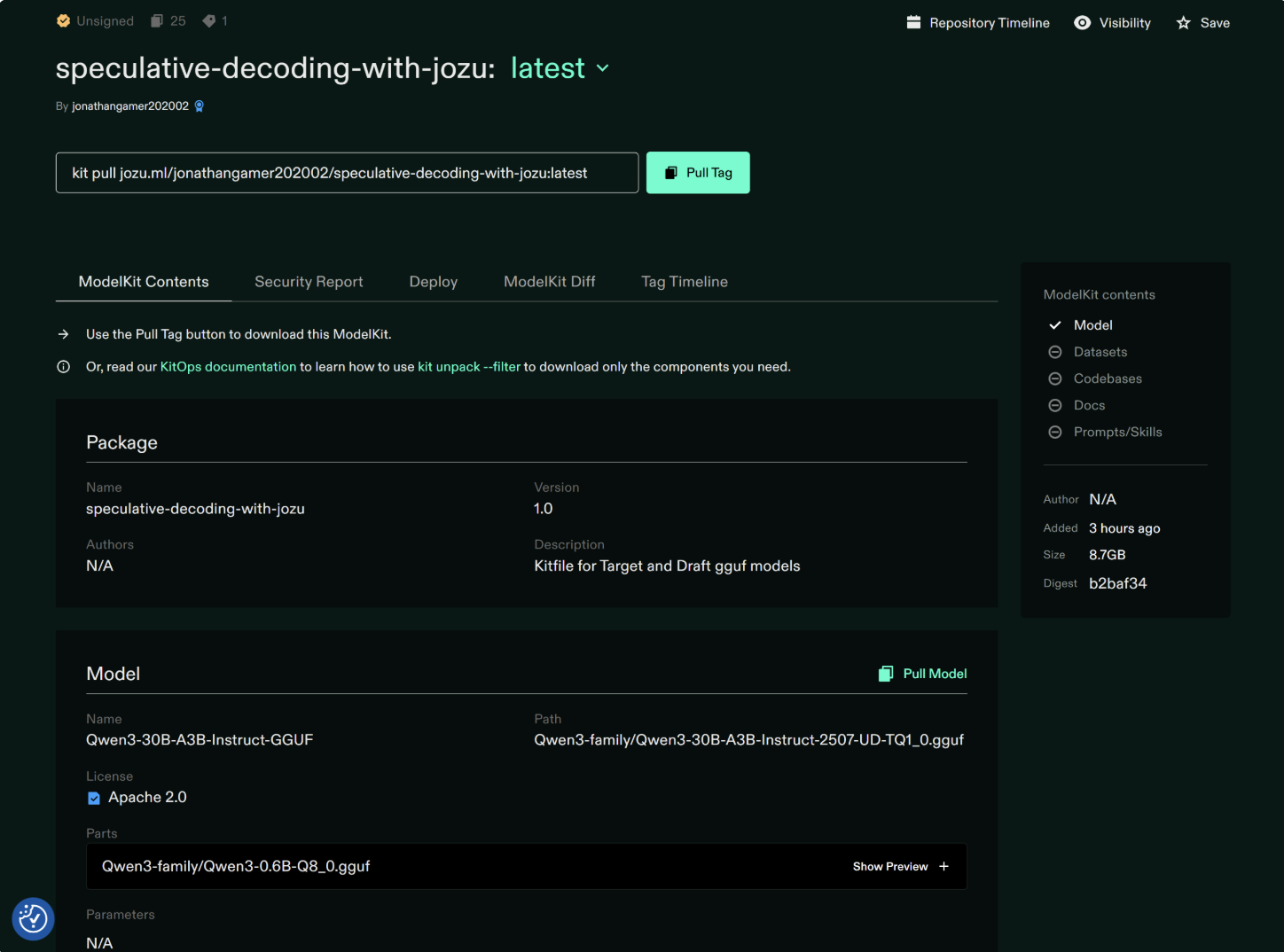
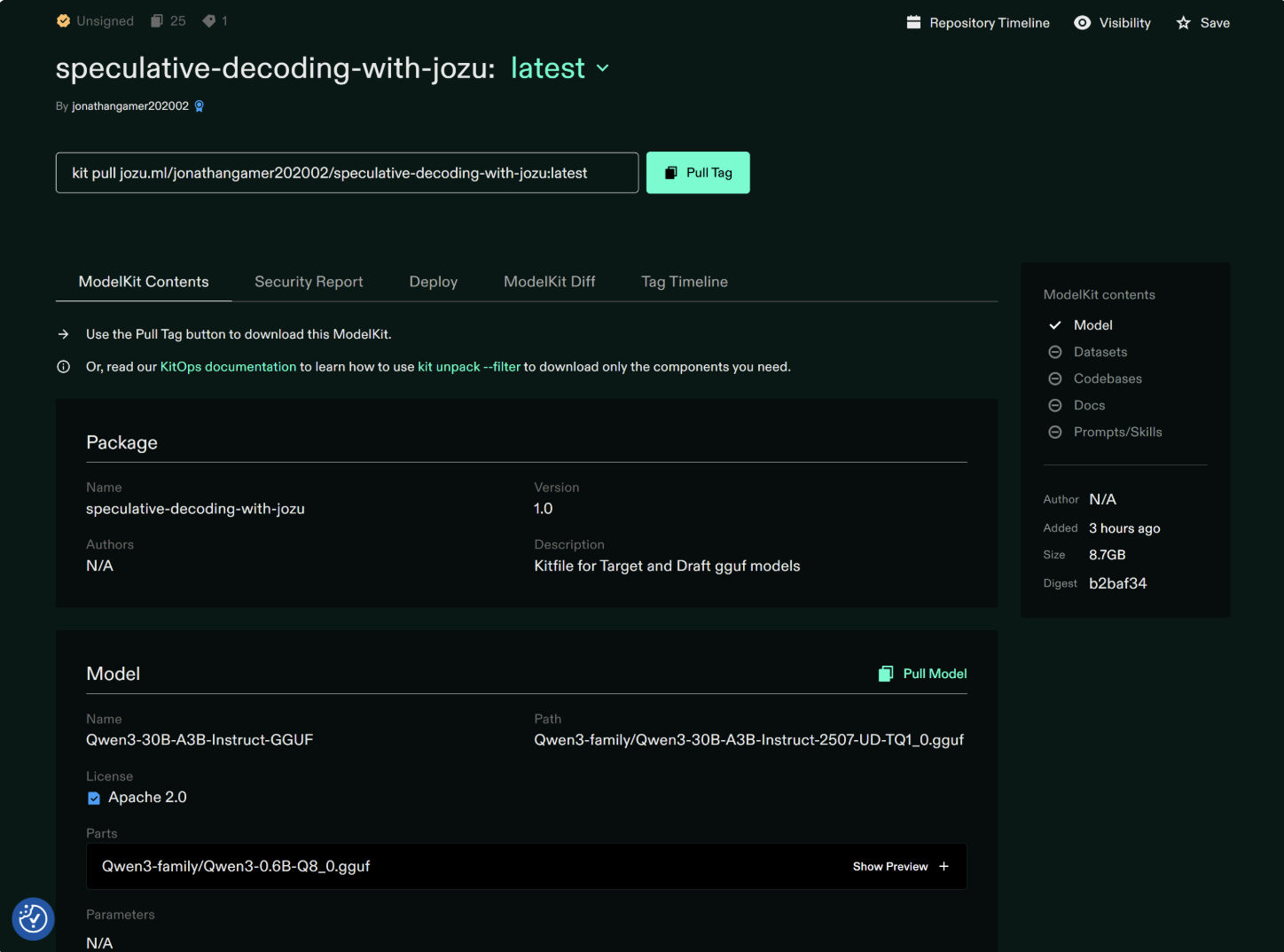
Then go to Jozu Hub to check that it has been pushed:
Running the LLM with Speculative Decoding on Jozu RIC
Serving the model with speculative decoding enabled
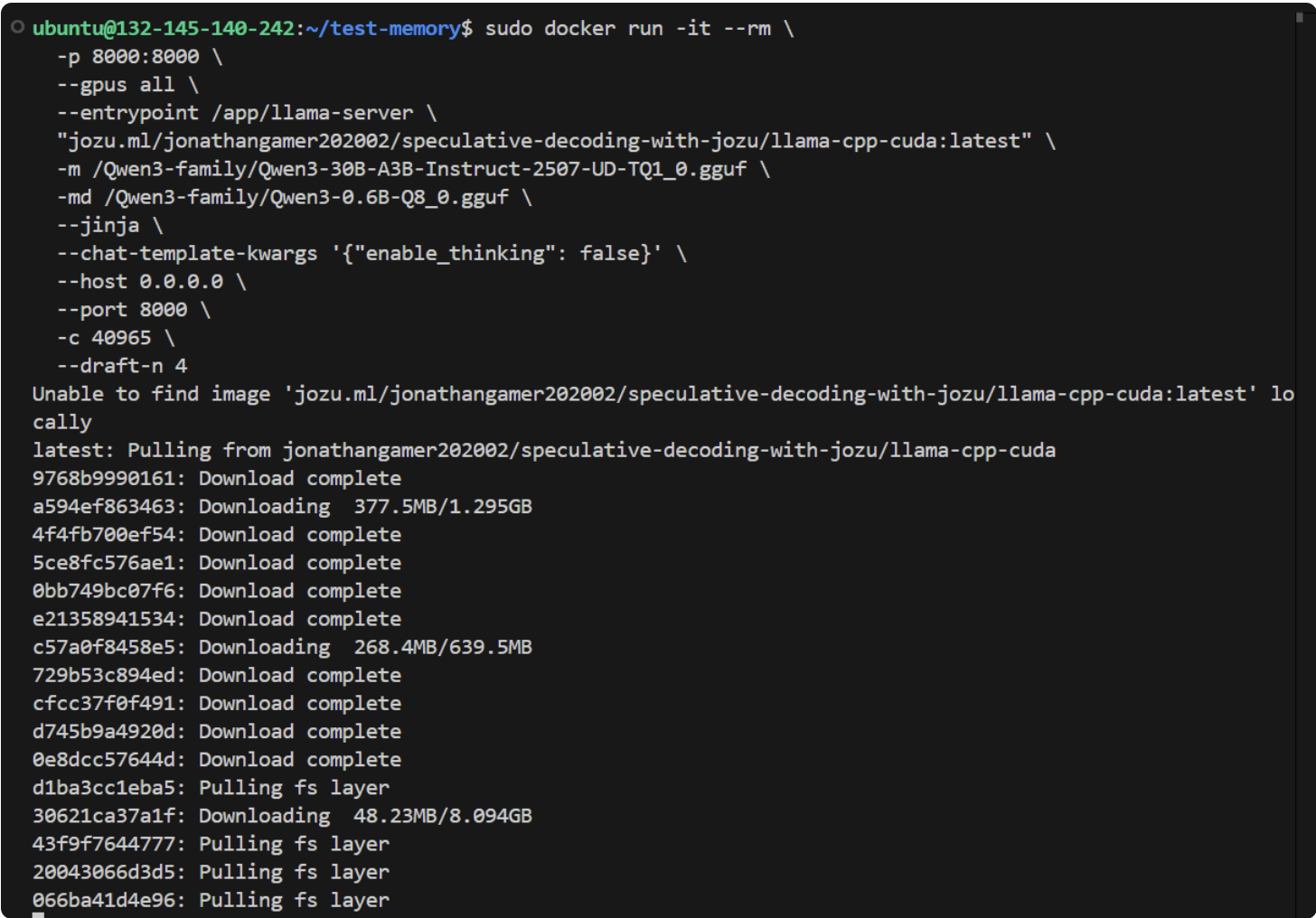
Run the command below:
sudo docker run -it --rm \
  -p 8000:8000 \
  --gpus all \
  --entrypoint /app/llama-server \
  "jozu.ml/email-prefix-here/speculative-decoding-with-jozu/llama-cpp-cuda:latest" \
  -m /Qwen3-family/Qwen3-30B-A3B-Instruct-2507-UD-TQ1_0.gguf \
  -md /Qwen3-family/Qwen3-0.6B-Q8_0.gguf \
  --jinja \
  --chat-template-kwargs '{"enable_thinking": false}' \
  --host 0.0.0.0 \
  --port 8000 \
  -c 40965 \
  --draft-n 4
Notes:
- The email prefix of jack123@gmail.com is just jack123.
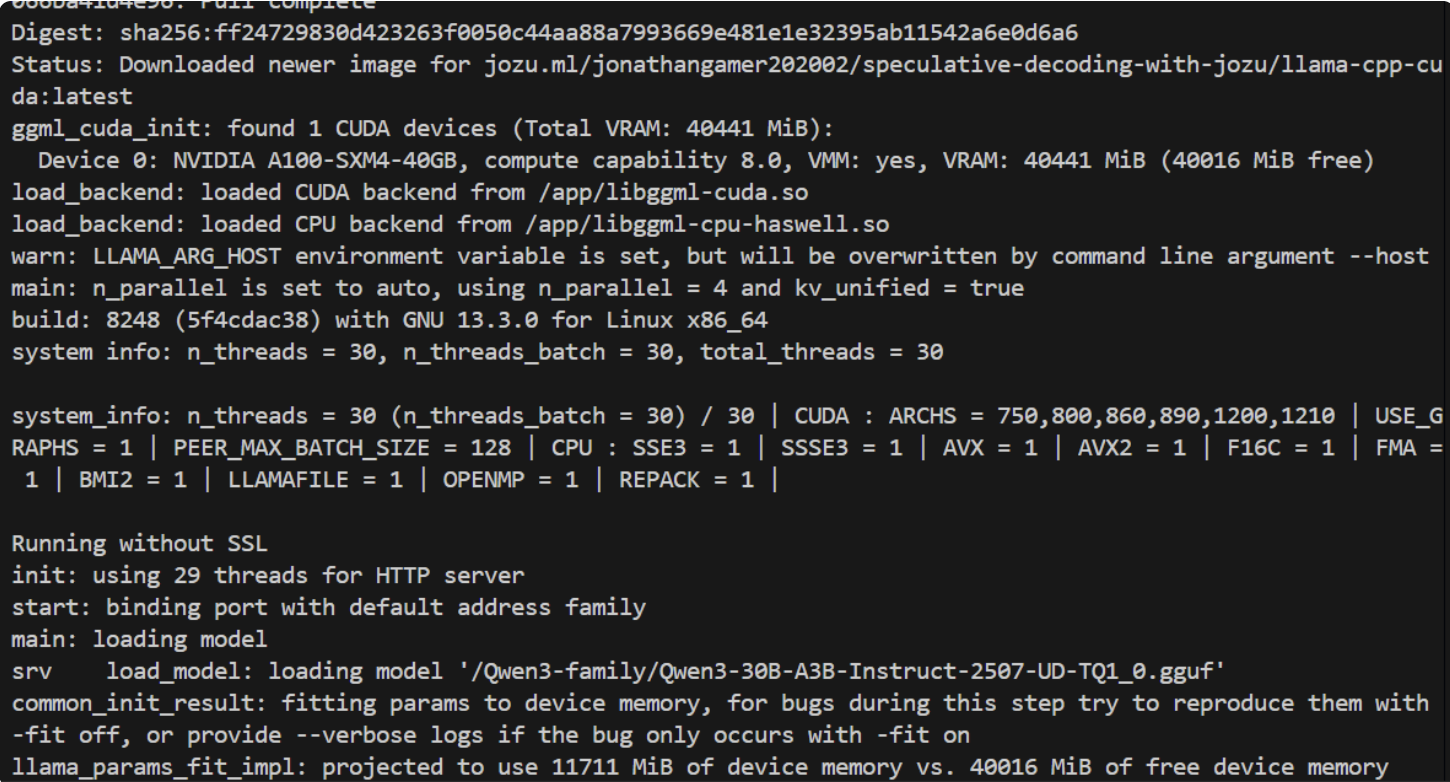
- You don't need any extra configuration to get Jozu RICs to use your GPU; it will automatically detect and utilize all available GPU nodes (as can be seen in the screenshot below).
- For the demo we run the LLMs in non-thinking mode and set the server's request context window (
-c) to40965. --draft-n 4means draft 4 tokens ahead.
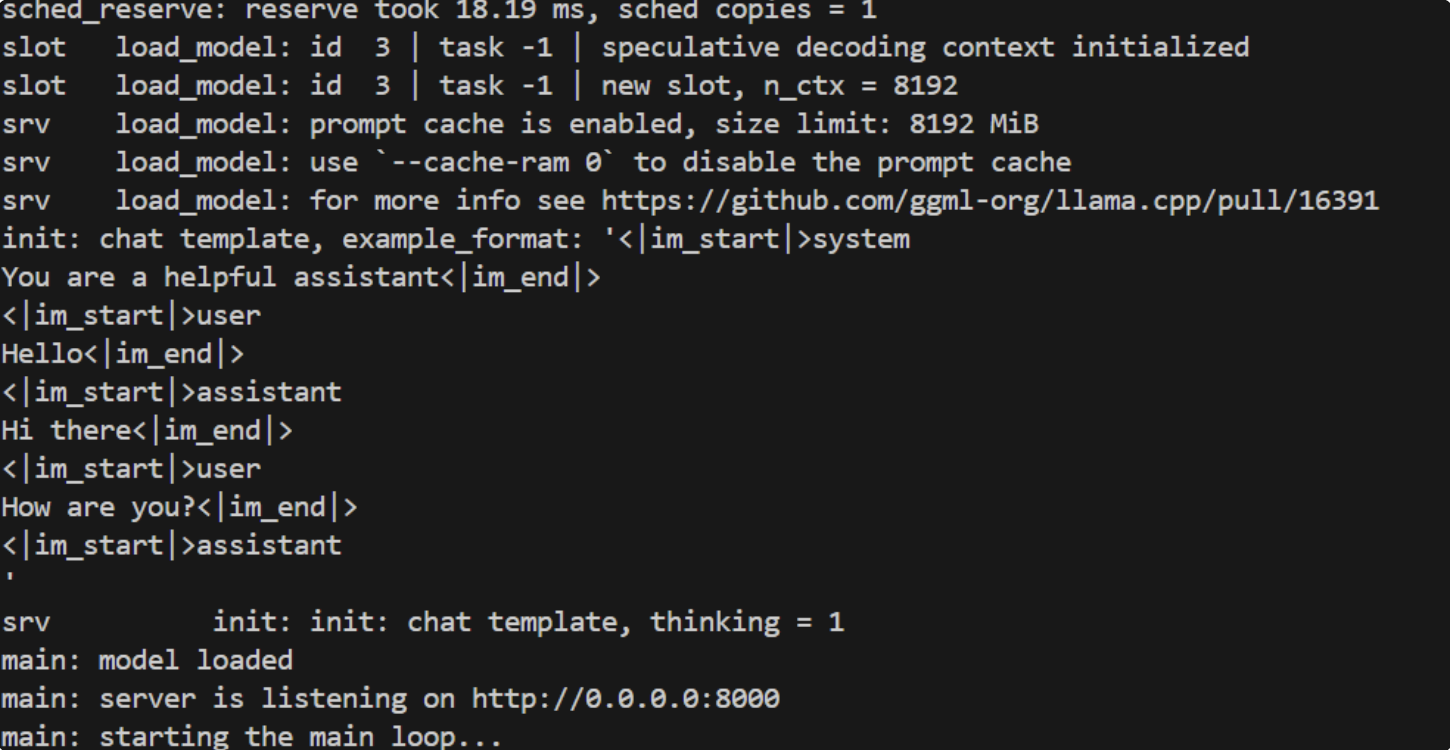
You should see a response similar to the screenshots below:
Inference speed test: with and without speculative decoding
First, we will test the speed of the running container with speculative decoding.
Run the command below on the terminal; it will report generation speed for 2048 tokens across three runs:
for i in 1 2 3; do
  echo "================"
  echo "Run $i result:"
  curl -s http://localhost:8000/completion -d '{
    "prompt": "Write an elaborate step by step technical guide on how to pre-train, finetune, and inference large language models.",
    "n_predict": 2048,
    "temperature": 0
  }' | python3 -c "import json,sys; print(json.dumps(json.load(sys.stdin)['timings'], indent=2))"
  echo "================"
done
On my machine, I got the result below:
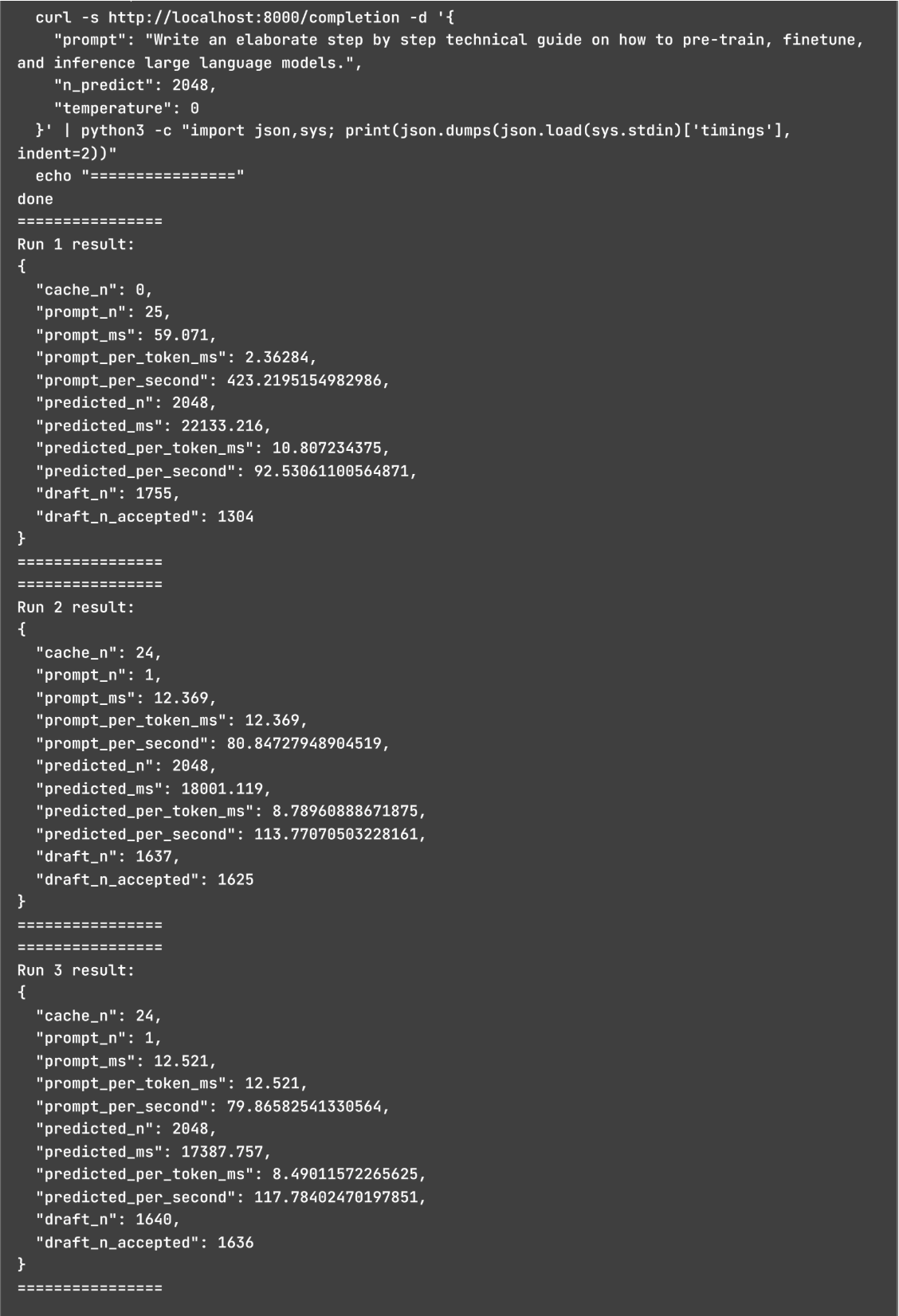
Looking at predicted_ms across the runs we have 22133.216, 18001.119 and 17387.757. So on average it takes ~19 seconds to generate 2048 tokens with speculative decoding. We can also see that over 70% of our draft model's predictions were accepted by the target model, meaning they are highly compatible.
Now stop the current running container by pressing ctrl + c, then enter the command below into the terminal to run the container without speculative decoding:
sudo docker run -it --rm \
  -p 8000:8000 \
  --gpus all \
  --entrypoint /app/llama-server \
  "jozu.ml/email-prefix-here/speculative-decoding-with-jozu/llama-cpp-cuda:latest" \
  -m /Qwen3-family/Qwen3-30B-A3B-Instruct-2507-UD-TQ1_0.gguf \
  --chat-template-kwargs '{"enable_thinking": false}' \
  --host 0.0.0.0 \
  --port 8000 \
  -c 40965
Note: The container should start like the previous one, except that the draft model will not be loaded.
After running the same generation test given above, I got the result below on my machine:
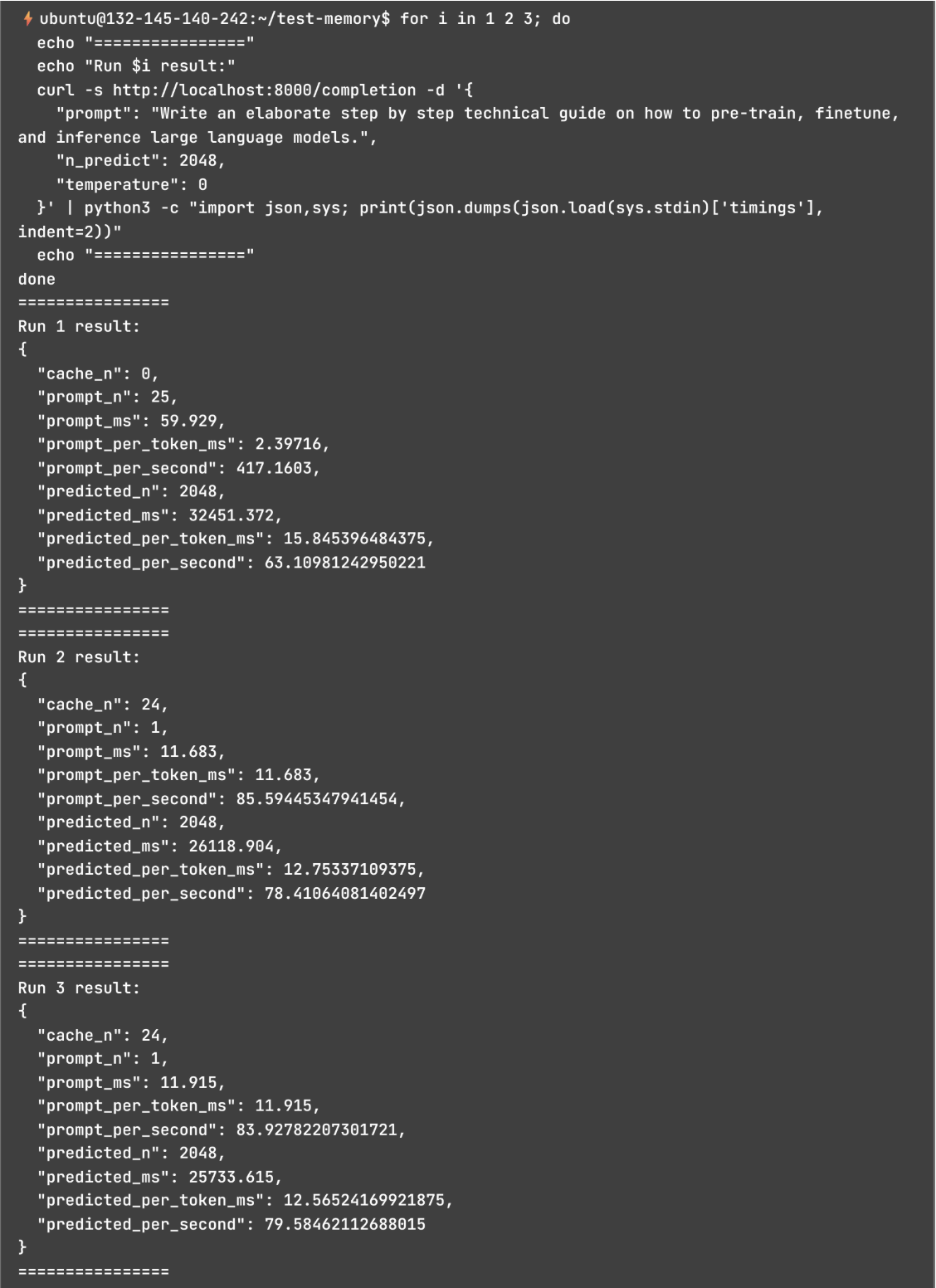
Looking at predicted_ms across the runs we have 32451.372, 26118.904 and 25733.615. So on average it takes ~28 seconds to generate 2048 tokens without speculative decoding.
Comparing the two: 28 (without spec) / 19 (with spec) = ~1.5, we can see we get a 1.5x speedup by using speculative decoding.
Note: The speedup is approximately 1.5× because the target model is a Mixture-of-Experts (MoE) model. Although it has 30 billion parameters in total, only 3 billion parameters are active during inference. As a result, the target model is already relatively efficient to run, which limits the benefit of speculative decoding. With a dense model (where all parameters are active during inference), or with an MoE model that has a much larger number of active parameters, you can typically expect speedups in the 2×–5× range.
Conclusion
Recap of What We Covered
In this tutorial, we downloaded the GGUF files for both the target and draft models from Hugging Face, packaged and versioned them as a ModelKit, published the ModelKit to Jozu Hub, and ran it locally using the Jozu Rapid Inference Container. We then benchmarked the inference container with and without speculative decoding, comparing their resulting text generation speeds.
Additional Resources and What's Next
If you want to go deeper into local LLM deployments, AI coding agents, and production-grade AI/ML workflows with Jozu Hub, the resources below are a great place to continue:
- Jozu Blog (best practices, architecture deep dives, and production guidance): https://jozu.com/blog
- Jozu Agent Guard (secure execution environments for AI Agents): https://jozu.com/agent-guard
- KitOps Documentation (detailed guides on ModelKits, versioning, and ML artifact management): https://kitops.org/docs
- Jozu Hub Docs (RICs, audits, governance, deployments, etc.): https://jozu.ml/docs
Head over to jozu.com to explore the public model catalog and start running your own local AI inference today.
Note: This blog has an accompanying GitHub repository that contains the code used for this tutorial. Check it out at https://github.com/Studio1HQ/speculative_decoding_with_jozu.